You will have seen that an overview of the responses to the Mobile Survey have now been published. As part of the survey, we gave staff and students the opportunity to add comments and make suggestions about the University’s mobile provision. Lots and lots of you did this, and we really appreciate your input. We thought you might like to know how we’re planning to take this forward in phase 2 (hopefully Easter) and phase 3 (summer 2012) of iNorthampton.
You said…
 General points:
“Need to be able to personalise the app more”
We included the ability to define your role when using the app from the first launch, to provide a framework for delivery of more personalised information in the future. You will soon be able to rearrange the tools on the springboard to move the ones you use most to the top. More targeted information for staff and current students will be coming in future phases.
“There should be more content from the Students’ Union”
We agree! The SU has been part of the project from the beginning. We are working with them on adding SU news, and the SU Youtube channel in phase 2, and SU photo galleries and events in phase 3.
“Does the app come in different languages?”
Yes. The app is available in English, Spanish, Portuguese, Arabic, German, Japanese, and Dutch. When the device is switched to a new language the framework of the app will respect that change, however the data supplied from University systems will still be delivered in English.
“There should be more integration with social media (Facebook, Twitter)”
We’re looking into the best ways to do this – whether as part of the news feeds, or by adding integration in other tools. We don’t want to add it just for the sake of it – it needs to go where it will be useful.
“The app is too big!”
We know that storage space is a concern, particularly for Android users. We have a difficult balance to strike between providing the information people ask for, and keeping the app size down. Before the launch of the next phase, we’ll be going through the app and slimming it down as much as we can.
Suggested improvements to current tools:
 You want updates/improvements to the maps. “And maybe a campus walkthrough, using video or augmented reality”
The main campus maps will be updated for phase 2 – this will be ongoing as changes are made to the campuses and new sites added. We also have the option to add AR features and video and audio tours, these are currently scheduled for phase 3.
“The directory needs to be organised into school areas, and should include the ability to search for services (i.e. ‘accommodation’ or ‘Finance’) as well as names”
The directory tool currently only pulls data from the staff database. This doesn’t provide a single point of contact by service, nor does it include staff who are not paid by the University (e.g. those from partner colleges). We’re looking to integrate other data sources in phase 3.
“The courses section has no information about research degrees”
This is tricky as there is no directory of available courses, as with the taught courses. We’re looking into linking to research degree information on the website instead.
 Events need to be “more relevant”
We’re looking to categorise the list of events, to make it easier to find things that interest you. This will require some changes to the way University events are booked in and advertised on the University web pages. Hopefully this will benefit users of the website as well as the mobile version – scheduled for phase 3.
You would like “to be able to check your library account and renew books”
We’re not sure yet whether or not this is possible with the current library system. But we’re looking into it.
“I want to get notifications/reminders from NILE”
This is coming, as part of the Mobile Learn (NILE) part of the app, but it is part of the core functionality, rather than something that is being built specifically for us, so we don’t have a date for it yet. Watch this space and we’ll let you know as soon as we know more.
“Why can’t I get NILE on my Blackberry?”
You can – but you have to get the separate Blackboard Mobile Learn app. It’s not possible to build this into another app on the Blackberry platform as it stands. We’re hoping that upcoming changes to the Blackberry operating system will allow us to improve the iNorthampton experience for Blackberry users.
 Improvements to the timetable module – “I don’t want to have to log in every time, and should show more of my timetable when I do”
We are working on improvements to this tool, but the best way to use it is to follow the ‘Add to Calendar’ link, and set up synchronisation between your University timetable, and the calendar tool you use most – this could be the calendar on your phone (for iPhone or Android), MS Outlook, or web-based calendars like Google or Windows Live. Once this is set up, you will no longer need to keep checking the timetables part of the app.
Suggestions for new features
“Please add bus times / traffic information / parking information / car sharing site / taxi numbers to the app”
 Northamptonshire County Council have their own app (called NCC) for Android and iPhone, which was developed by staff here at the University. This already has live bus timetables, so we’d recommend you use this if you can. They also supply a text service to send bus times to your mobile. Sadly this does mean that the NCC won’t let us use the timetable data, but we’re looking at including links to the timetables on the website, as well as to traffic information and the car sharing website.
At present we can’t collect the data for how many parking spaces are free at any one time on site, but we have asked Infrastructure Services to look into this for us.
The University does not have a recommended taxi company, so we won’t be supplying taxi numbers, sorry.
“Can we have a tool to report faults in halls?”
We’re planning to include a telephone number for this in phase 2, and investigating a more detailed GPS-based solution for a future development (sorry, no dates for this yet).
“The app should include email, and access to file storage”
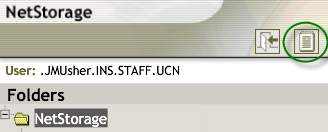
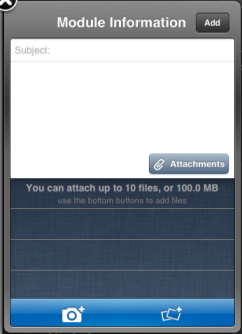
We took the decision not to include email, as smartphones already include a tool to integrate this. File storage is a little more complex, as iOS devices in particular do not have an accessible folder structure where files are stored. There are a few web-based alternatives available though. Apart from files in NILE, you can also access documents stored on the web (or in cloud services like Google docs or Windows Live) through a mobile browser. The University is also looking into access to Novell folders (staff personal or shared drives) on mobile devices via the Netstorage tool, watch this space for updates on this.
“It would be great to include links to other apps that are useful for learning”
We didn’t want to bulk out the app with these, as they may not all be relevant to all users. However when we find useful apps, we will be adding recommendations to our LearnTech blog. If you’d like to make a recommendation, or write a guest post, just let us know!
“Opening times and menus for the restaurants would be good, and links to offers from Greggs!”
We’re looking at adding ‘places of interest’ to the maps in phase 3, and this will include all the eating places, hopefully along with opening times and menus. If you want offers from Greggs, they will give them to you – but only in exchange for a like from your Facebook account.
“A tool which shows the nearest free PC would be good”
We know this is possible in theory. Our Infrastructure Services department are looking at monitoring software that can tell whether each PC is logged in or not. Once we have this up and running, we just need to find a way to get that data into the app. Leave this one with us!
If you have further suggestions to share, they are always welcome. Send them to the team at mobilefeedback@northampton.ac.uk.