
The new features in this month’s Blackboard’s upgrade will be available from Friday 6th March. This month’s upgrade includes the following new/improved features to Ultra courses:
- Generate knowledge checks in Ultra documents with AI Design Assistant
- Add a second due date and participation requirements in discussions
- Partial credit limits removed for multiple option test questions
- Blackboard test question title field relocated
Generate knowledge checks in Ultra documents with AI Design Assistant
Staff using the knowledge check tool to add interactive quiz elements into their Ultra documents will find, following the March upgrade, that knowledge check questions can be auto-generated. The current option to create questions manually still exists via the ‘Enter my question’ option, but a new ‘Auto-generate question’ option will be in place from Friday. This new option will auto-generate four questions based on the content in the Ultra document (although staff can use the ‘Select course items’ option to broaden the range of material on which the AI Design Assistant bases the questions), and from these four options staff can choose one to add, editing it beforehand should they wish to.

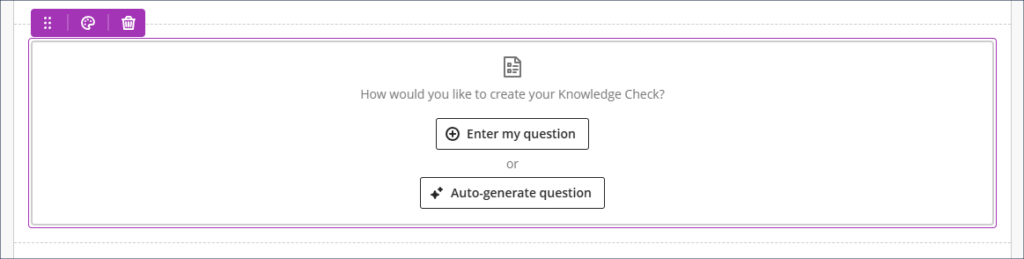
More information about creating Ultra documents can be found at: Blackboard Help – Documents
More information about the AI Design Assistant can be found at: Blackboard Help – AI Design Assistant
Add a second due date and participation requirements in discussions
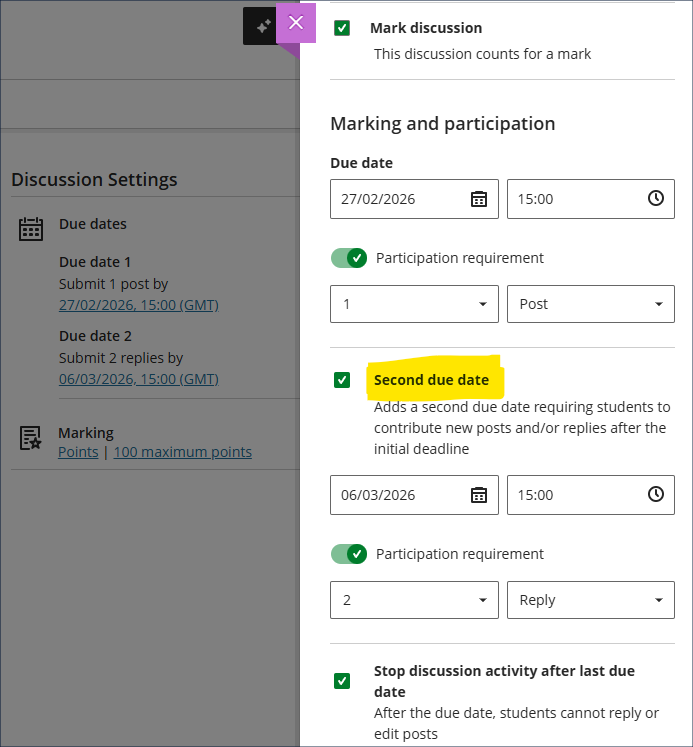
Following the December 2025 upgrade which introduced the option to specify participation requirements in discussions, the March upgrade will bring in the option to specify a second due date when using discussions, along with a second set of participation requirements. An example of how this might be used is shown in the screenshot below, where students are required to make a single post, and then, a week later, to have made two replies.
The participation requirements will be displayed to students when they view the discussion, and the progress tracker will show them when they have met the minimum requirements.
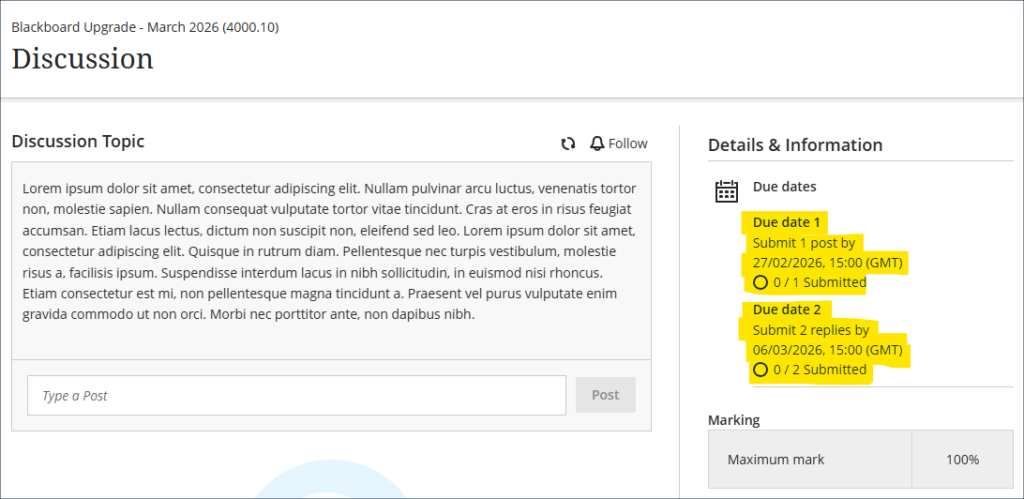
Setting participation requirements does not affect any gradebook settings. For example, if a student has not met the minimum participation requirements this will not affect whether or not the discussion can be marked.
More information about setting up and using discussions is available from: Blackboard Help – Discussions
Partial credit limits removed for multiple option test questions
The March upgrade will see some restrictions removed from the percentages that can be awarded for partial and negative credit-enabled multiple option and multiple choice test questions.
1. Multiple option test questions
A multiple option question, also called a multiple answer question, is a question where students are presented with a number of possible answers and can select more than one answer. Multiple option questions can have more than one correct answer, but it is not a requirement for a multiple option question to have more than one correct answer.
Currently, the following are prohibited when setting multiple option questions:
- Awarding a total percentage for all the correct answers that is not equal to 100%.
- Awarding a positive percentage for an incorrect answer.
Following the March upgrade, staff setting multiple option questions will be able to:
- Where there is more than one correct answer, award a total percentage for the multiple correct answers that is equal to or above 100%. (Where there is only one correct answer to a multiple option question, the correct answer can only have a value of 100%.)
- Award a positive percentage for an incorrect answer.
Unchanged are the following:
- The combined score for the correct answers cannot be less than 100%.
- A correct answer cannot receive a negative percentage.
- No single answer can score more than 100% or less than -100%.
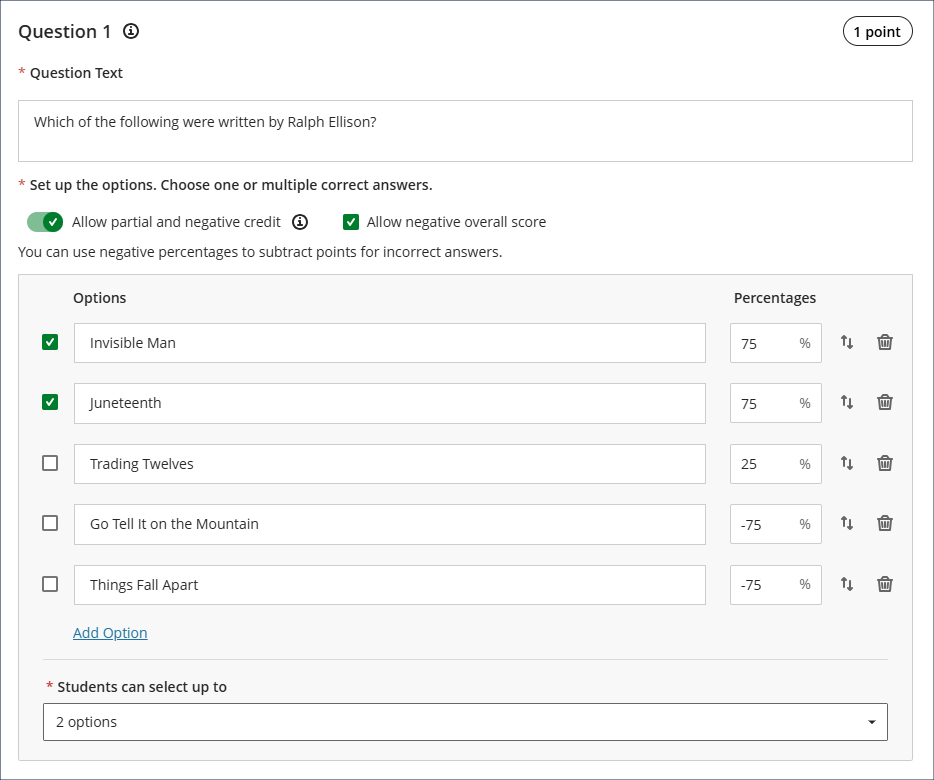
An example of how this could work is shown in the screenshot below. In the question the maximum and minimum scores are the same, and students can score between -150% and 150% on this test question. And a small positive percentage is allowed for one of the incorrect answers, as while it is not a fully correct answer it is not as incorrect as the other two incorrect answers. Note that the correct answers are the ones marked with a tick in the box to the left of the answers.
2. Multiple choice questions
A multiple choice question is one where students are presented with a number of possible answers and can select only one answer.
When setting up a multiple choice question the correct answer must still equal 100%. However, following the March upgrade the incorrect answers in a multiple choice test can score anywhere between 100% and -100%, whereas prior to the upgrade incorrect answers could only score between 0% and -100%.
Advice when setting up multiple option/choice questions
Please note that while these changes allow for more flexibility, particularly when setting multiple option/choice questions, it does now require more care to be taken when using partial and negative credit scoring, not least because staff will no longer be required to enter a negative score for an incorrect response, so there is now nothing preventing a question from awarding as many, or even more, points for getting the answer wrong as for getting it right. To award a negative score for an answer, staff must add a minus in front of the percentage, as, following the upgrade, this will no longer be done automatically or enforced, and there are no warnings given when positive percentages are entered for incorrect answers. Please do not assume that the percentages awarded for incorrect responses are the percentages being deducted. They are only being deducted if there is a minus in front of the percentage.
While there is now more flexibility (and complexity) in this area, staff do not have to use partial and negative credit when setting up multiple option/choice questions. However, staff who would like to make use of partial and negative credit scoring but who are not confident to do so are welcome to contact their learning technologist to arrange a training session about how these features work.
More information about setting up Blackboard tests is available from: Learning Technology Team – Ultra Workflow 3: Blackboard Test
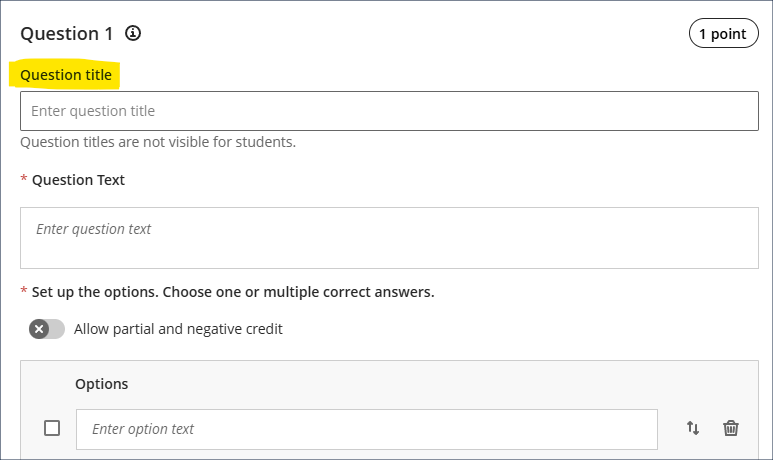
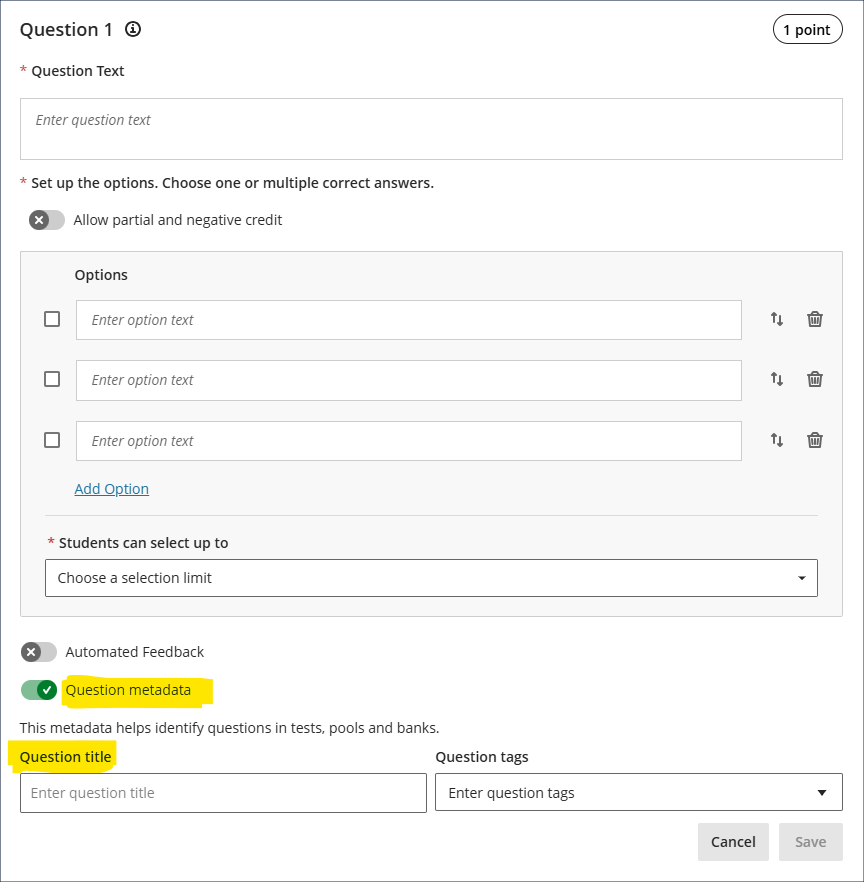
Blackboard test question title field relocated
In the September 2025 upgrade Blackboard introduced the option to add titles to test questions. These question titles are optional, not visible to students, and are designed to help staff locate previously created questions for reuse in other tests. Following requests from staff, many of whom found the prominent placement of the question title field to be unhelpful, the March upgrade will see the question title field moved to the question metadata section of the question setup options, which more accurately reflects its purpose.
Learning technology / NILE community group
Staff who are interested in finding out more about learning technologies and NILE are invited to join the Learning Technology / NILE Community Group on the University’s Engage platform. The purpose of the community is to share information and good practice concerning the use of learning technologies at UON. When joining the community, if you are prompted to login please use your usual UON staff username and password. By joining the Learning Technology / NILE Community you will receive calendar invitations to our regular live community events:
Join the Learning Technology / NILE Community Group
More information
As ever, please get in touch with your learning technologist if you would like any more information about the new features available in this month’s upgrade: Who is my learning technologist?