The new features in this month’s Blackboard’s upgrade will be available from Friday 6th November. This month’s upgrade includes the following new/improved features to Ultra courses:
Note: The improved group search tools feature was removed from the November release by Blackboard, who said that, “We are holding this feature to complete final testing and make sure it meets our standards before it reaches your production environment. It will move to a future release.”
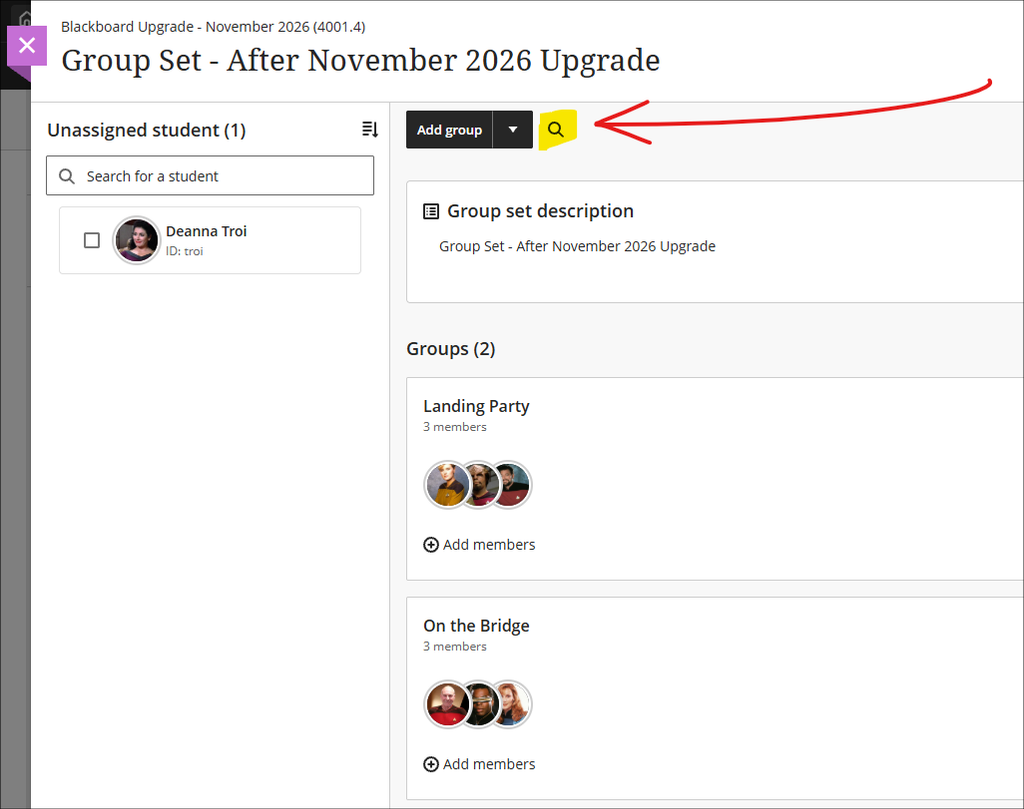
Currently, when creating or managing groups in NILE, staff can only search for students not yet in a group. Following November’s upgrade staff will be able to use a new search tool to find students who are already in a group, or to search for groups by name.
• Group set with new search tool highlighted
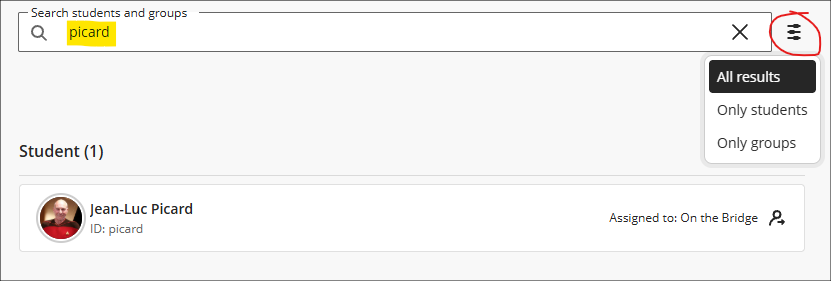
The new search tool will default to show both students and groups, but filters can be applied to show only students or only groups. Where a student is found, their group name will also be displayed. Where a group is found, the students in that group will be displayed (if it is not clear who the students are from their avatars, select the ‘Expand details’ to display the students’ names).
• Search box for assigned students and groups
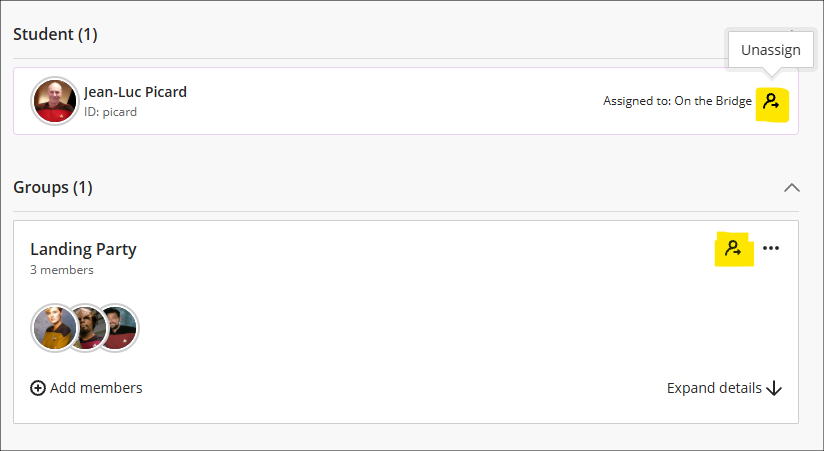
Note that the icon highlighted in the screenshot below is an ‘unassign’ tool, and selecting it will immediately remove the student from the group, or all the students from the group – no warning, confirm, or ‘are you sure?’ message is displayed when unassigning students. In the example of the student in the screenshot below, selecting the unassign button will remove the selected student, Jean-Luc Picard, from the assigned group ‘On the Bridge’. Any other students in that group will remain in the group. In the example of the group in the screenshot below, Landing Party, selecting the unassign button will immediately remove all the group members.
Assigned students and groups search results with unassign tool highlighted
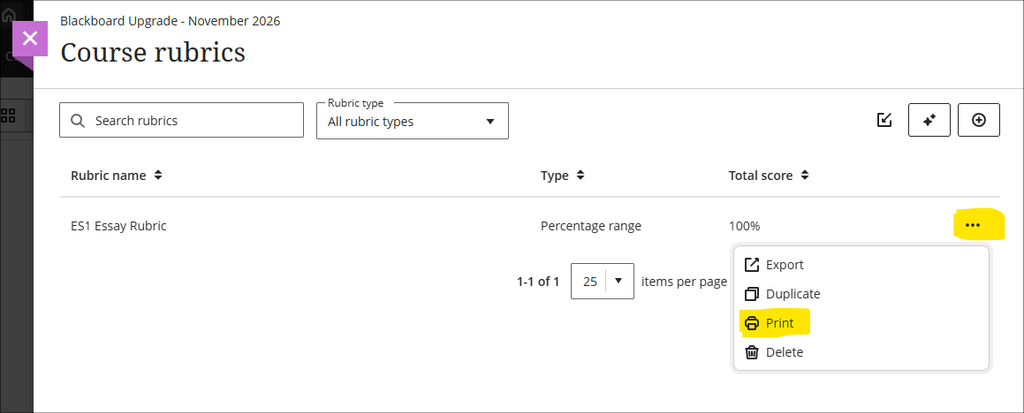
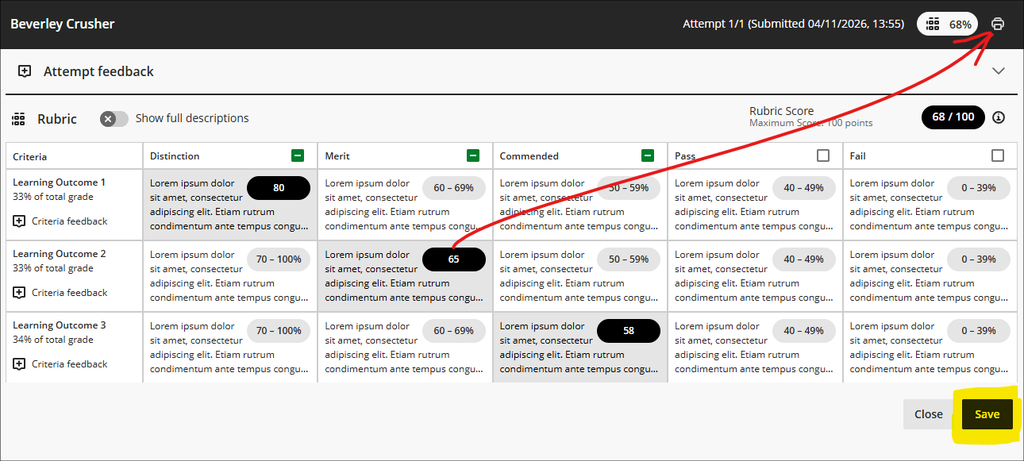
• Blackboard rubrics management page with print option highlighted
Staff can also print scored rubrics from the gradebook. When using this option, the rubric will need to be saved before being printed.
Note that when a Blackboard rubric is used with a Blackboard assignment, students will always have option to view the rubric themselves at any point prior to submission (as long as the assignment submission point is set to ‘Visible to students’ and the rubric has been attached to the assignment, and there are no release conditions preventing access). Students will also always be able access to their own scored rubrics rubrics after the assignment marks have been posted.
More information about setting up and using Blackboard rubrics is available at: Blackboard Help – Rubrics
Staff who are interested in finding out more about learning technologies and NILE are invited to join the Learning Technology / NILE Community Group on the University’s Engage platform. The purpose of the community is to share information and good practice concerning the use of learning technologies at UON. When joining the community, if you are prompted to login please use your usual UON staff username and password. By joining the Learning Technology / NILE Community you will receive calendar invitations to our regular live community events:
As ever, please get in touch with your learning technologist if you would like any more information about the new features available in this month’s upgrade: Who is my learning technologist?
The new features in this month’s Blackboard’s upgrade will be available from Friday 16th October. This month’s upgrade includes the following new/improved features to Ultra courses:
Following the October upgrade, staff using anonymously marked Blackboard assignments will be able to reveal individual student identities in accordance with University policy when academic misconduct is suspected.
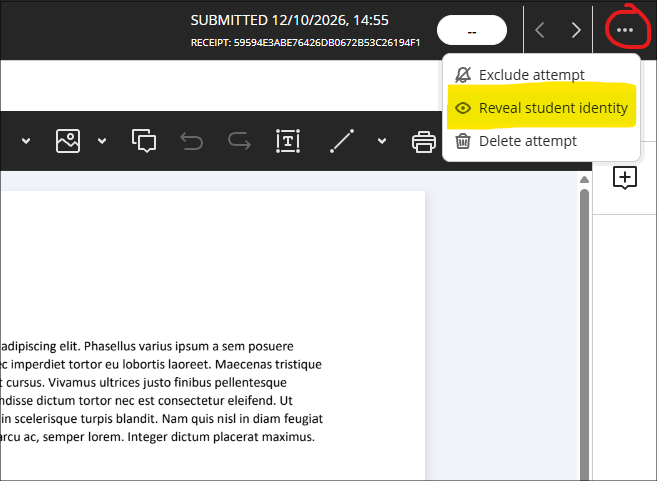
Where staff have set up an anonymously-marked Blackboard assignment and need to reveal an identity, the option to do this is located in ellipsis menu in the marking window. After selecting ‘Reveal student identity’ staff will be prompted to provide a reason, and the reason and name of the staff member revealing the identity will be stored in NILE.
• Marking window with ellipsis menu open and ‘Reveal student identity’ option highlighted
Unlike anonymously-marked Turnitin assignments, anonymously-marked Blackboard assignments will not show staff which students have not submitted assignments, therefore staff cannot contact non-submitters in line with University policy. For this reason, use of anonymously-marked Blackboard assignments is still discouraged.
Blackboard rubrics: new rubrics management page, plus rubrics export/import option
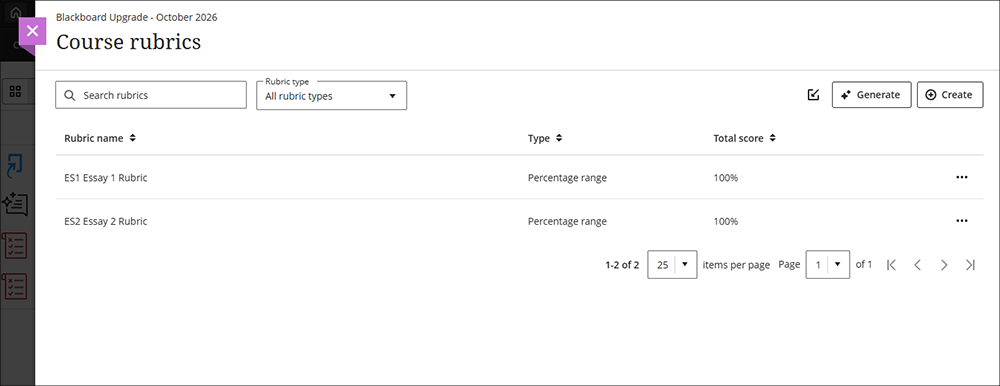
October’s upgrade will introduce a new rubrics management page for Blackboard rubrics. Currently, rubrics are accessed at the bottom of the gradebook settings panel. Following the upgrade, the bottom of the gradebook setting page will instead show a link to the rubrics management page, allowing staff to better see, create, sort, search and manage their rubrics. In addition, rubrics can be exported and imported from the rubrics management page, as well as auto-generated and duplicated.
Display username, last access date, and points possible in the gradebook
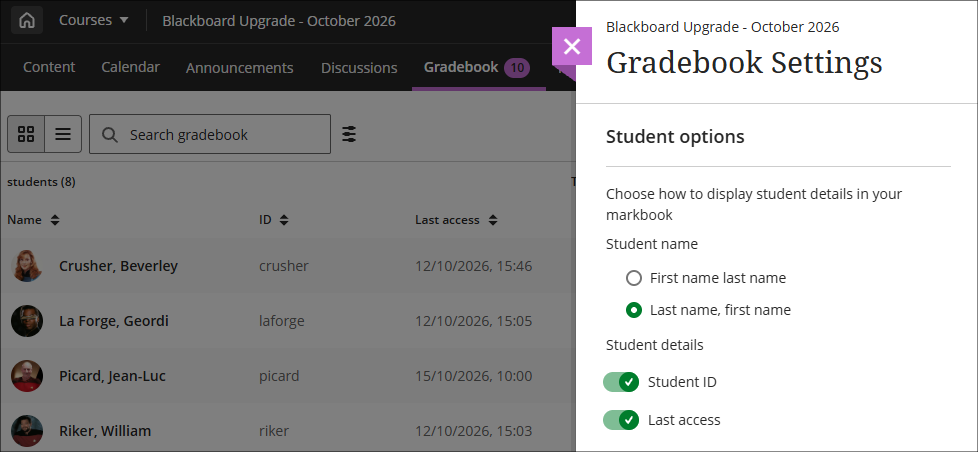
October’s upgrade will allow staff the option to display each student’s last access date in the gradebook grid view, as well as their student ID. Staff can also choose whether to display names in firstname, lastname order, or lastname, firstname. As with other gradebook columns, these can be sorted in ascending or descending order. All these display options can be found at the top of the gradebook setting panel.
• Gradebook display options in the gradebook settings panel
Note that more detailed student engagement analytics can be found under the Analytics tab in NILE, including days since last access and overall time spent in the NILE course.
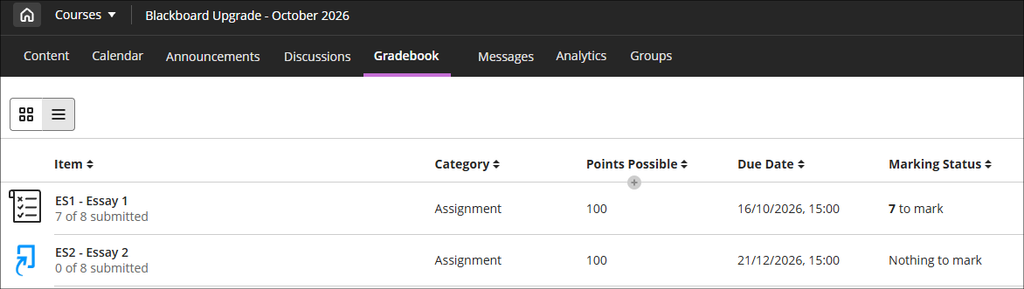
Following the October upgrade, the gradebook list view display will show the points possible for each assignment. Unlike the previous options, points possible is always displayed and there is no option to switch it off.
• Gradebook in list view showing the new ‘points possible’ columns for each assignment
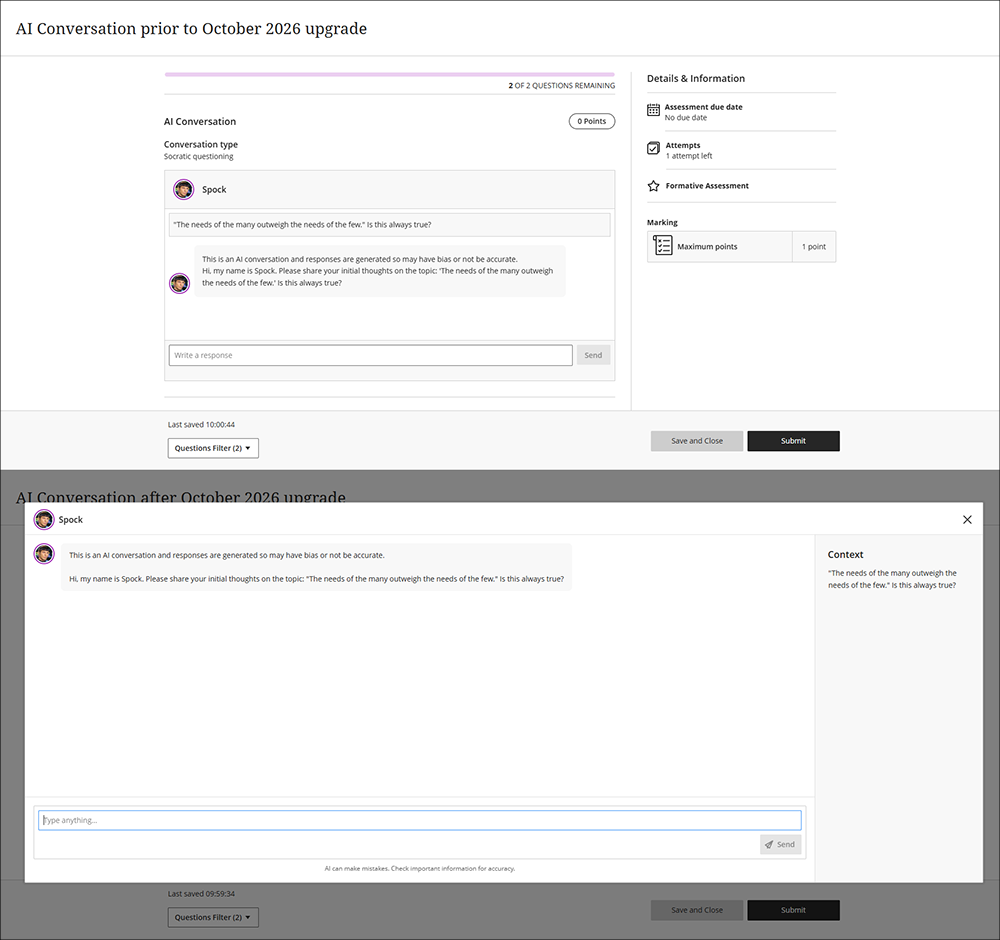
October’s upgrade will introduce a new immersive experience for students taking part in AI conversations, providing students with more room to work and removing information they do not need while they are taking part in an AI conversation.
• Student view of AI conversation before (top) and after (bottom) the October upgrade
Staff who are interested in finding out more about learning technologies and NILE are invited to join the Learning Technology / NILE Community Group on the University’s Engage platform. The purpose of the community is to share information and good practice concerning the use of learning technologies at UON. When joining the community, if you are prompted to login please use your usual UON staff username and password. By joining the Learning Technology / NILE Community you will receive calendar invitations to our regular live community events:
As ever, please get in touch with your learning technologist if you would like any more information about the new features available in this month’s upgrade: Who is my learning technologist?
UPDATE 02/09/2026: Blackboard have postponed this September update until October 1st at the earliest. The below features will become available from October onward.
This month’s upgrade includes the following new/improved features to Ultra courses, etc:
Ability for staff to restrict accepted file types for Blackboard assignment submissions
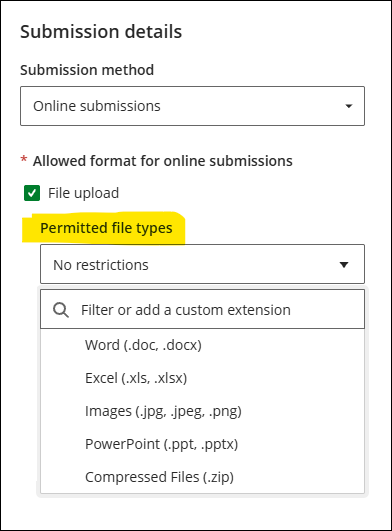
Just one change to NILE this month, an update to Blackboard assignments allowing staff to restrict the types of file that students can submit. By default all file types can be submitted, so Blackboard assignments will continue to work as normal where these new settings are unchanged. However, where staff wish to do so a list of accepted file types can be added to a Blackboard assignment.
To specify which types of file students can submit, staff can add these in the assignment settings panel, under ‘Submission details’. Common file extensions can be selected from a drop down list, but staff can add their own too. Where this feature is used, we strongly recommend that students are informed of this well in advance.
• Blackboard assignment submission settings with ‘Permitted file types’ highlighted
Staff who are interested in finding out more about learning technologies and NILE are invited to join the Learning Technology / NILE Community Group on the University’s Engage platform. The purpose of the community is to share information and good practice concerning the use of learning technologies at UON. When joining the community, if you are prompted to login please use your usual UON staff username and password. By joining the Learning Technology / NILE Community you will receive calendar invitations to our regular live community events:
As ever, please get in touch with your learning technologist if you would like any more information about the new features available in this month’s upgrade: Who is my learning technologist?
Update, 6th August: The August 2026 upgrade has been temporarily delayed and will not be available as planned on the 7th of August. Update, 10th August: The August 2026 upgrade was completed over the weekend of the 8th/9th August.
The new features in this month’s Blackboard’s upgrade will be available from Friday 7th August. This month’s upgrade includes the following new/improved features to Ultra courses, etc:
Blackboard’s August upgrade includes significant changes to the gradebook. There is no loss of functionality with the new gradebook, and some new features have been added, but the layout and general look and feel of the gradebook is quite different.
As there’s too much to cover in a blog post we’d recommend taking a look at the following page on Blackboard’s Community site for a video walkthrough of new gradebook (no login is required to access this page): Blackboard Community – Gradebook Navigation and Layout
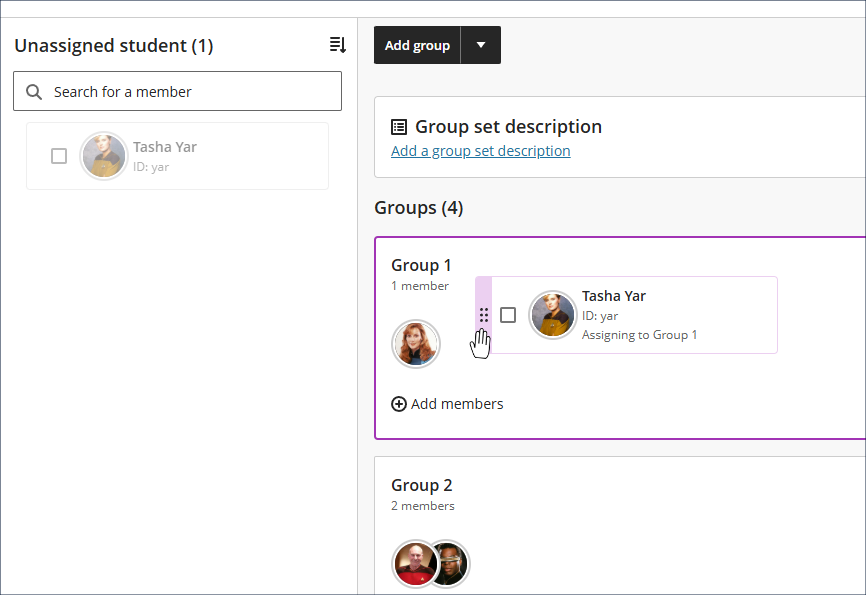
The creation and management of groups will become easier following the August upgrade. As well as an improved interface, the new groups tool allows students to be added to groups using drag-and-drop.
Option to duplicate learning modules, folders and content items within a course
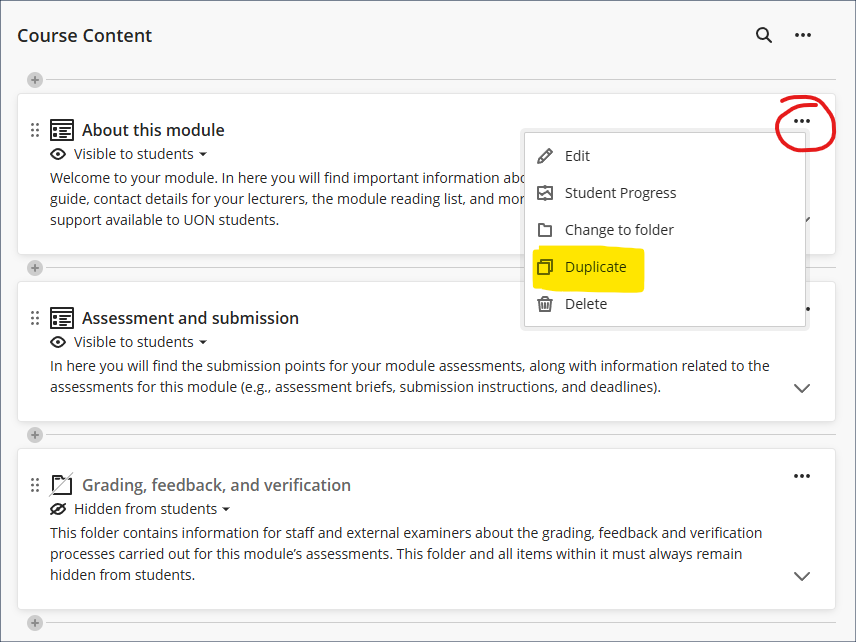
Following the August upgrade, staff will be able to duplicate learning modules, folders, and individual content items within a course via the ‘More options’ (•••) menu to the right of the item.
Copied items will, by default, be hidden from students and placed immediately below the original, with ‘Copy’ added to the name of the copied item. Most individual item types can be copied, but for those that cannot be duplicated individually (i.e., LTI items*) the duplicate option will not be available. However, where a whole learning module or folder is duplicated all items within (including LTI items) will be duplicated.
*An LTI item is anything which has been added via the Content Market
• Staff view of a NILE course with the ‘Duplicate’ button highlighted and ‘More options’ menu circled in red
Staff who are interested in finding out more about learning technologies and NILE are invited to join the Learning Technology / NILE Community Group on the University’s Engage platform. The purpose of the community is to share information and good practice concerning the use of learning technologies at UON. When joining the community, if you are prompted to login please use your usual UON staff username and password. By joining the Learning Technology / NILE Community you will receive calendar invitations to our regular live community events:
As ever, please get in touch with your learning technologist if you would like any more information about the new features available in this month’s upgrade: Who is my learning technologist?
The new features in this month’s Blackboard’s upgrade will be available from Friday 3rd July. This month’s upgrade includes the following new/improved features to Ultra courses:
NILE courses for the 26/27 academic year are now available. Full guidance about how to set up your NILE courses for teaching is also available, along with written and video guidance about how to safely copy across your 25/26 NILE courses to your 26/27 NILE courses.
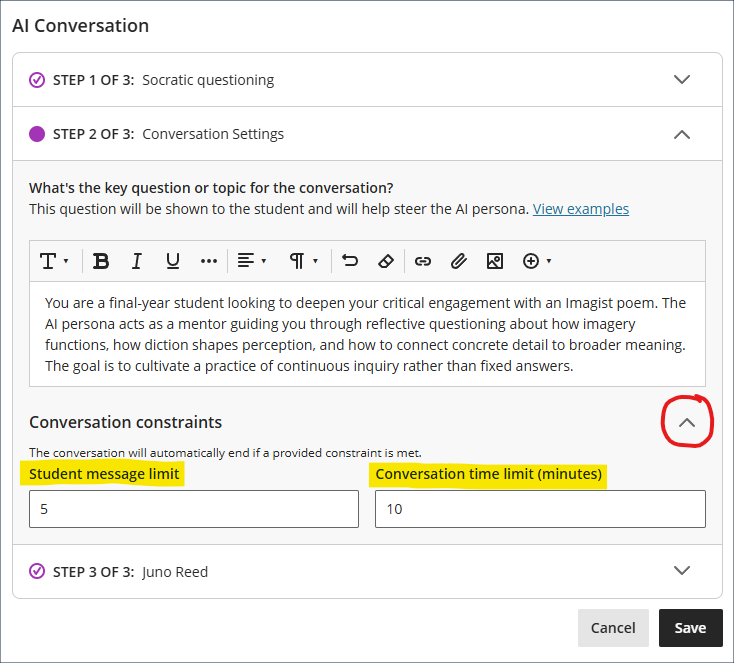
Staff are not required to specify either the maximum number or replies a student can make or the maximum time a conversation may last, but can optionally use one or both of these to constrain the conversation. Where both are used, whichever constraint is reached first will end the conversation. When the conversation ends due to a constraint being reached the AI persona will wrap up the conversation, thanking the student for their participation, summarising the conversation, and directing the student to complete the reflection question. Where a limit to the number of replies is set, a student can still use the ‘Save and close’ and function and is not required to complete the conversation in a single sitting. However, while a student can save and close a conversation while the timer is running, this will not pause the timer, which will continue to run regardless. If the timer runs out while the conversation has been saved and closed the AI persona will not wrap up the conversation.
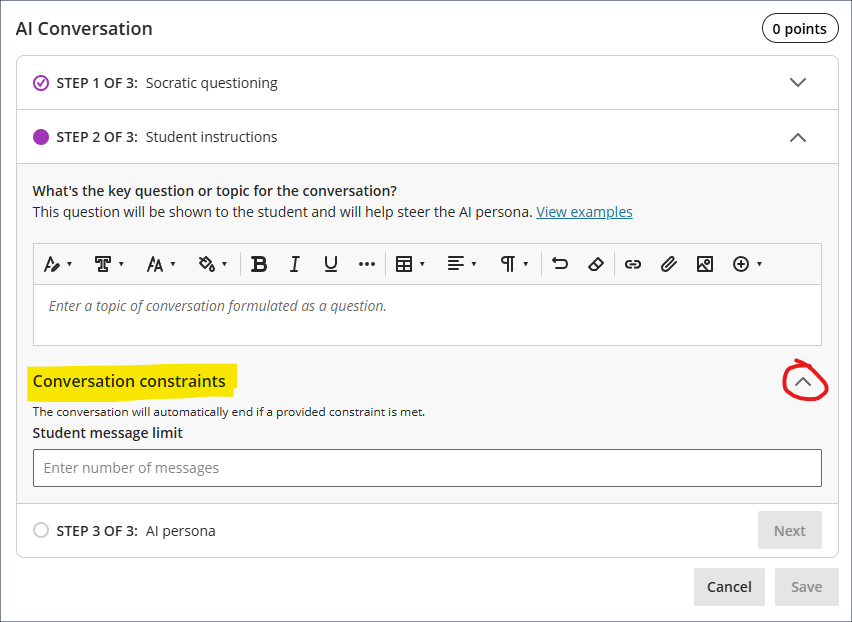
The options to specify time and/or reply limits are available via the ‘Conversation constrains’ menu when setting up the conversation.
• AI conversation setup screen with conversation constraints panel open
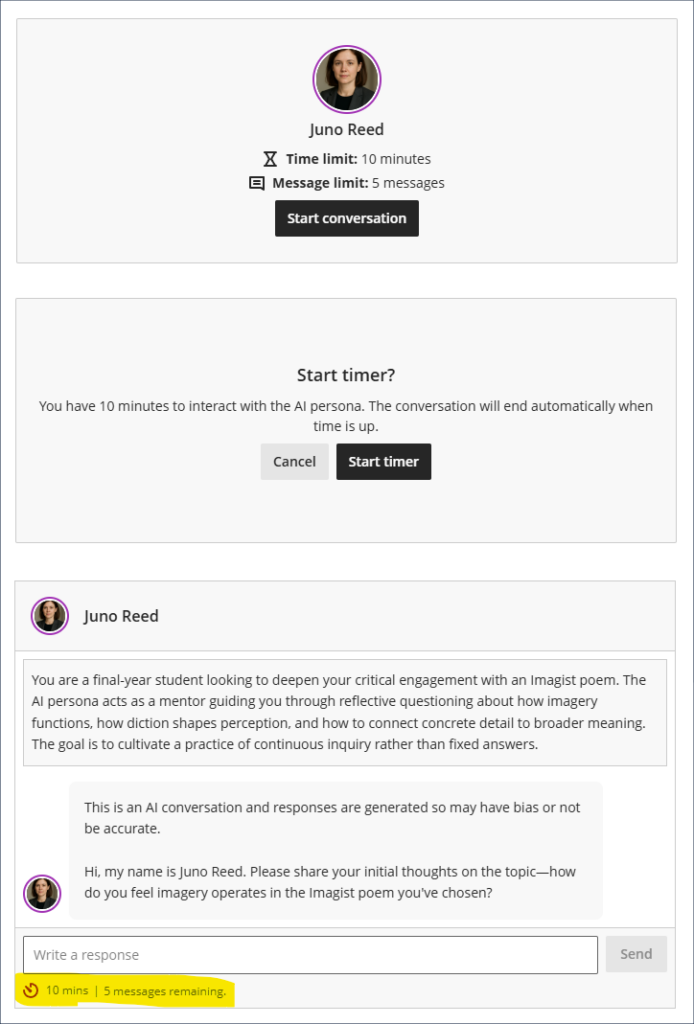
When students begin an AI conversation which has had constraints applied, this will be displayed when launching the conversation. If a timer has been set, an additional screen will show following the ‘Start conversation’ screen at which students will be prompted to ‘Start timer’ (or to cancel if they are not ready to begin). Once the timer has started it will not stop. If the student chooses to save and close the conversation, the timer will still run in the background. Once the conversation has started the remaining time and the remaining number of replies is shown at the bottom of the conversation. Note that the timer applies only to the AI conversation, not to the reflection question.
• Student view of a conversation with constraints applied
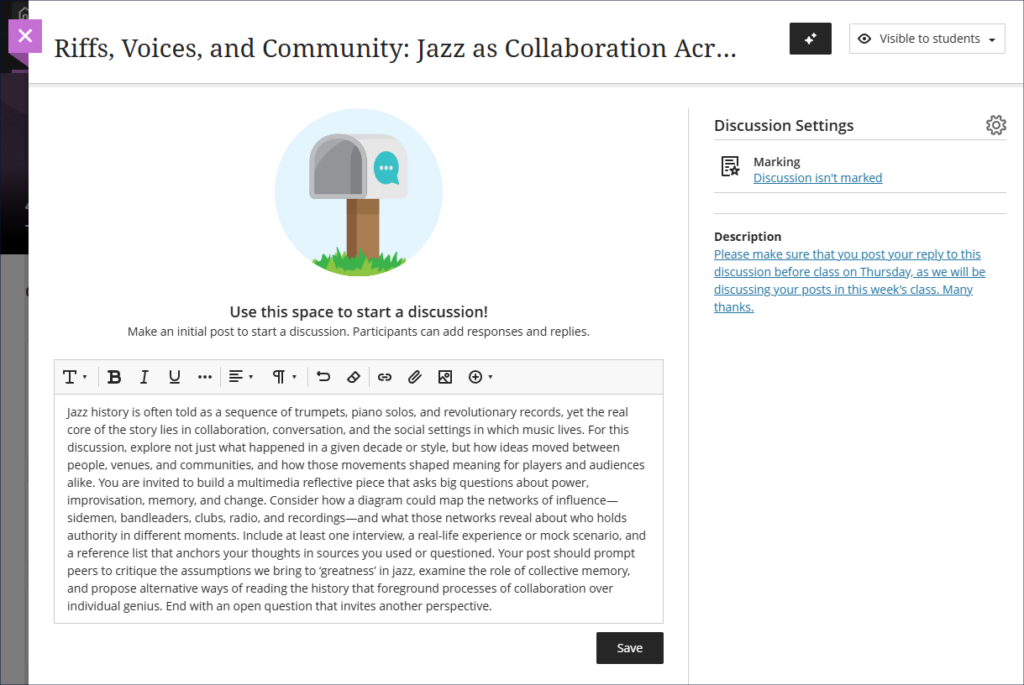
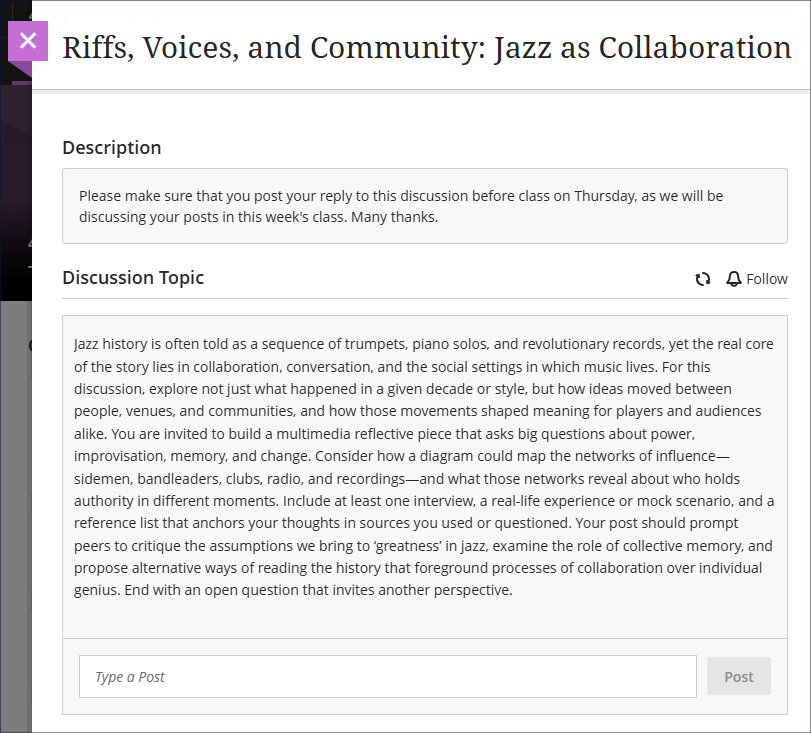
Staff can now add descriptions to discussions and journals. These descriptions are optional and are separate from the discussion/journal topic. Currently, the topic for the discussion or journal is shown on the course content page immediately below the discussion or journal title. Following July’s upgrade the topic will no longer be shown on the course content page, and will only be visible to students once they have entered the discussion or journal. The space below the discussion/journal title on the course content page will be reserved for the description, and where a description is not used this field will remain blank.
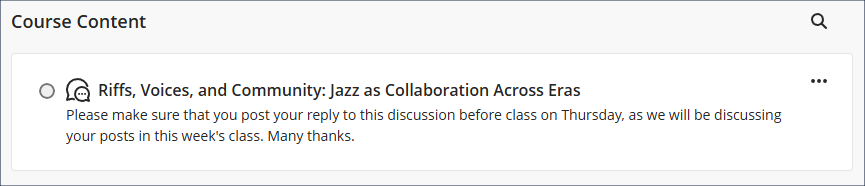
An example of how this might be used is as follows. The discussion topic would be used as normal, as the initial stimulus post to which students would post their replies. The description, which students will see on the course content page before entering the discussion, could then be used to add useful information about when to post their replies or to make their journal entries: for example, to remind students to complete their discussion post (or journal entry) before coming to class on such and such a date, as shown in the screenshot below:
• Staff view of the discussion setup screen with a description applied
The description would then display to students in the NILE course on the course content page as so:
• Student view of a discussion in the course content area, showing the description below the discussion title
And the actual topic for discussion would only be seen upon entering the discussion, along with the description:
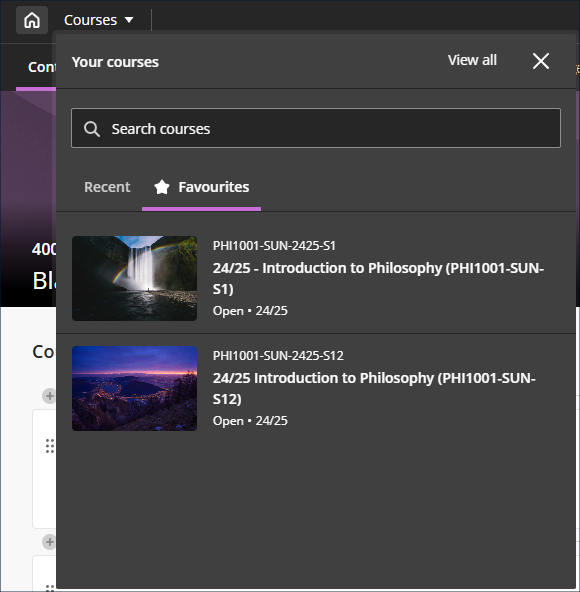
Find your favourite courses faster with course switcher
Building on May’s upgrade, which introduced a search option to the course switcher, a favourites tab has now been included to the course switcher, allowing staff and students to quickly move between their favourite courses.
Staff who are interested in finding out more about learning technologies and NILE are invited to join the Learning Technology / NILE Community Group on the University’s Engage platform. The purpose of the community is to share information and good practice concerning the use of learning technologies at UON. When joining the community, if you are prompted to login please use your usual UON staff username and password. By joining the Learning Technology / NILE Community you will receive calendar invitations to our regular live community events:
As ever, please get in touch with your learning technologist if you would like any more information about the new features available in this month’s upgrade: Who is my learning technologist?
The new features in this month’s Blackboard’s upgrade will be available from Friday 5th June. This month’s upgrade includes the following new/improved features to Ultra courses:
Provide answer-level feedback for multiple choice and multiple answer questions
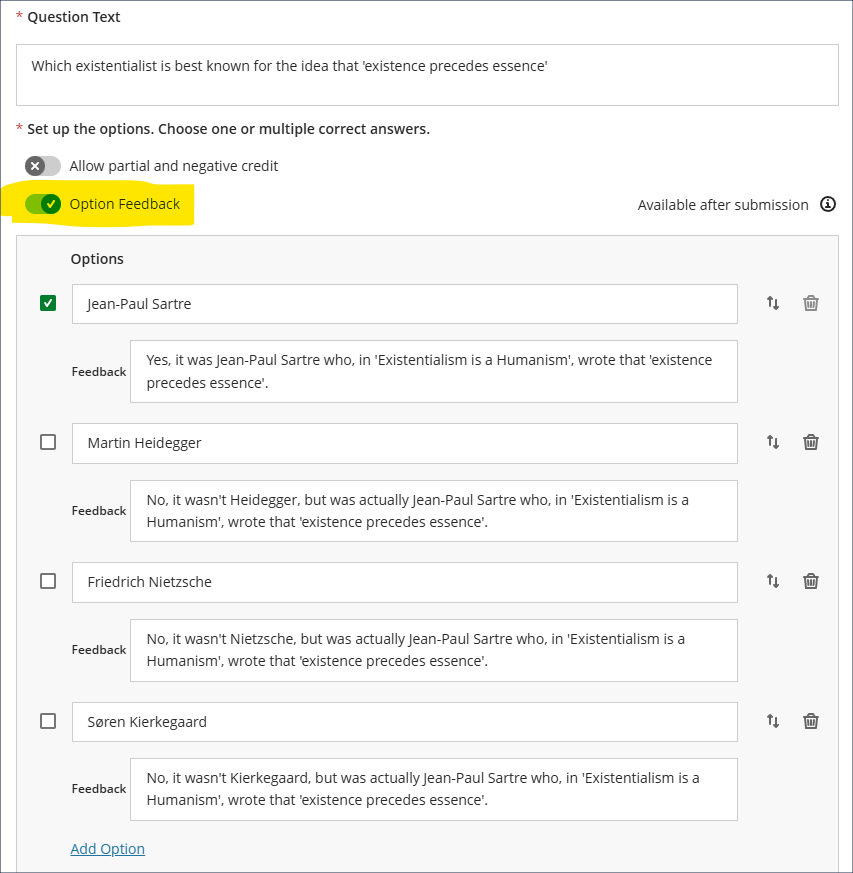
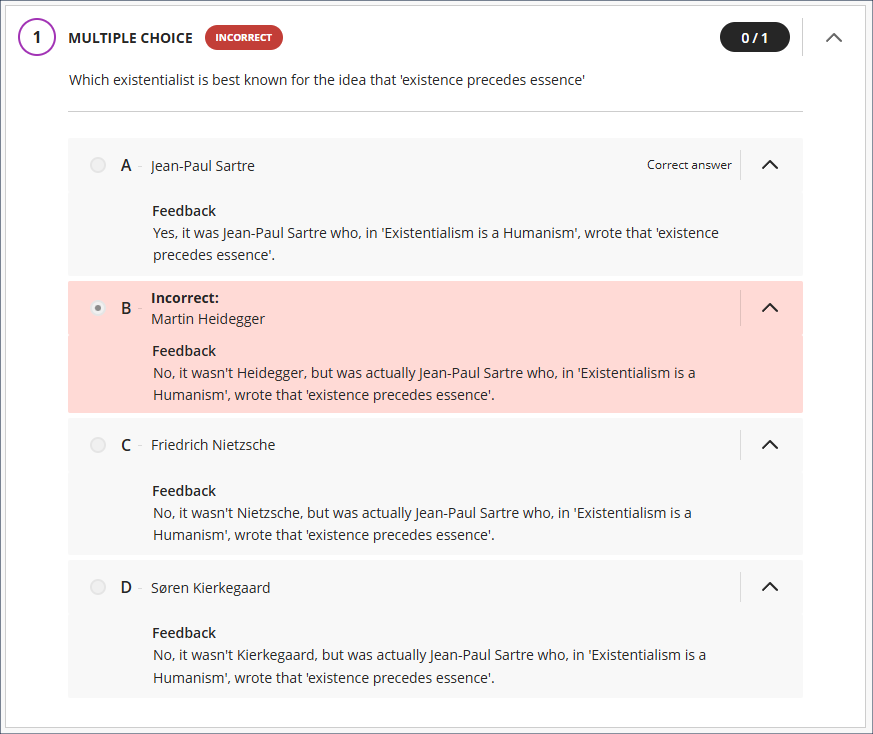
When creating or editing multiple choice or multiple answer questions, June’s upgrade will bring in an ‘Option Feedback’ tool which allows staff to add feedback to each answer response, thus providing students with more detailed feedback about why certain responses were correct or incorrect. When adding feedback, staff do not have to enter feedback for all responses, so can, for example, only add feedback for incorrect responses.
• MCQ test question with ‘Option Feedback’ tool highlighted and feedback added for all responses
The release timing of the feedback is controlled in the assessment setting panel, so staff can choose when to provide the question feedback, e.g. immediately upon submission of the test, or only when all grades are posted.
Please note that in this initial release of the option feedback tool, students will see the feedback for all responses, not just the ones they selected (as shown in the screenshot below). However, this will be changed in a later release so that feedback is only displayed to each student for the responses they actually selected.
• Student view of MCQ response feedback, showing feedback for all responses, which response was selected, that it was incorrect, and which was the correct response
Lock response options in a fixed position for multiple choice and multiple answer questions in Blackboard tests
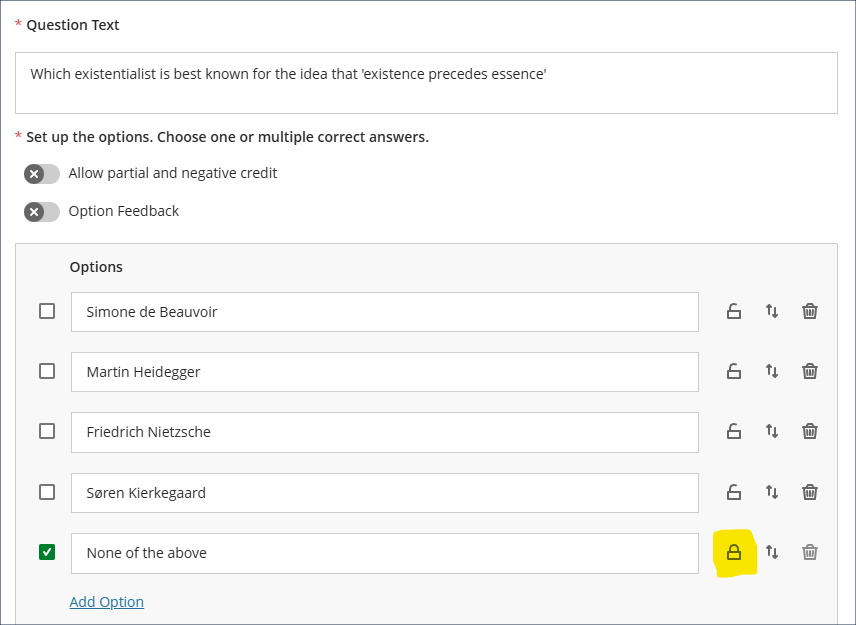
Following June’s upgrade, staff using Blackboard tests will be able to lock multiple choice/answer responses in place when using the ‘randomise answers’ setting. The main use case for this is where staff want to lock responses such as ‘all of the above’ or ‘none of the above’ in place while randomising the display of the remaining responses (as in the screenshot below).
• MCQ test question with ‘None of the above’ response lock highlighted
However, as the randomise answers test setting applies to all multiple choice/answer questions in a test (i.e. staff cannot specify that some questions should have have randomised answers and some should not), the lock tool allows for scenarios in which staff want the responses to most questions randomised, but where there are certain questions in which all the responses to a particular question need to be displayed in a particular order, therefore there is no limit to the number of responses that can be locked in a test question.
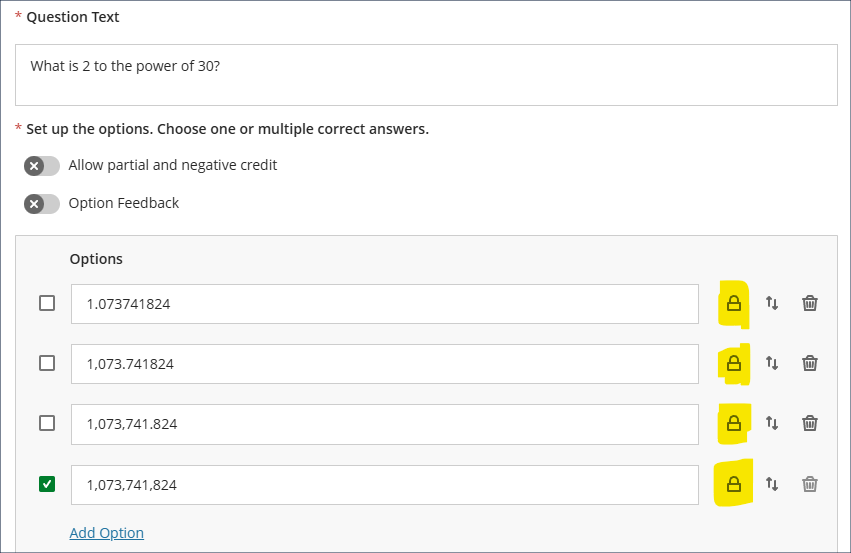
In the following screenshot, all the responses for the question are locked, so that although other test questions will have their responses randomised, this one will always display the responses in the order specified.
• MCQ test question with all responses locked
Note that the ability to lock answers in place will only display once randomise answers has been selected in the assessment settings panel.
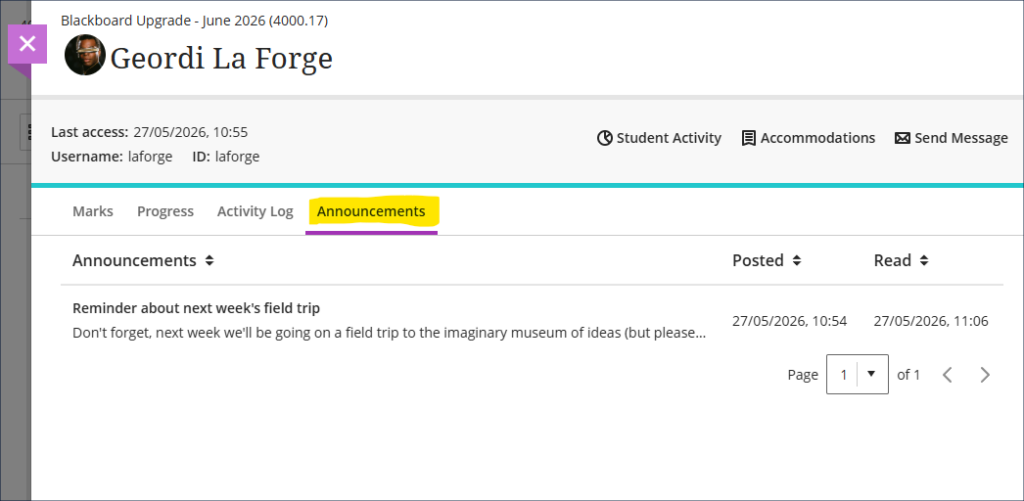
In addition to the Marks, Progress, and Activity Log tabs, the June upgrade will bring in an Announcements tab to the student overview panel in NILE courses, showing which announcements each student has marked as read and when. However (and it’s a big ‘however’), despite appearing to do so, the announcements tracker does not actually indicate whether a student has read an announcement or not, only whether they have marked it as read or not. Students can read an announcement but not mark it as read, and can not read an announcement but mark it as read. Therefore, because there is no necessary relationship between marking an announcement as read and actually reading it, staff should treat the information in this tab (and also in the review student engagement with announcements panel) with an appropriate degree of caution.
• Student information panel with new ‘Announcements’ tab showing
Staff who are interested in finding out more about learning technologies and NILE are invited to join the Learning Technology / NILE Community Group on the University’s Engage platform. The purpose of the community is to share information and good practice concerning the use of learning technologies at UON. When joining the community, if you are prompted to login please use your usual UON staff username and password. By joining the Learning Technology / NILE Community you will receive calendar invitations to our regular live community events:
As ever, please get in touch with your learning technologist if you would like any more information about the new features available in this month’s upgrade: Who is my learning technologist?
Update – May 8, 2026: Please note that the May upgrade is currently on hold as a problem was discovered with it. NILE is not affected by the problem as it was discovered prior to our upgrade, therefore we will remain on version 4000.12 (April 2026) and won’t be upgraded to version 4000.15 (May 2026) until the problem has been fixed. More information is available at: Blackboard Issues with 4000.15.0 Release Update – May 11, 2026: The 4000.15 (May 2026) upgrade is available as of today, Monday 11 May 2026.
The new features in this month’s Blackboard’s upgrade will be available from Friday 8th May. This month’s upgrade includes the following new/improved features to Ultra courses:
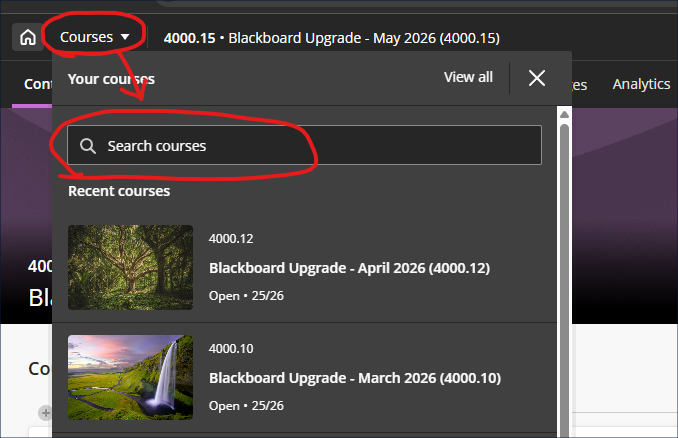
Following the introduction of the new navigation in the January 2026 upgrade, the May upgrade will bring in an improvement to the course switcher, allowing staff and students to search for courses. At present, the course switcher allows staff and students to move from their current course to one of their four most recent courses (displayed in the ‘Recent courses’ section of the course switcher window). Following the upgrade staff and students will see a search box, making it possible to switch between any two NILE courses without closing the current NILE course and returning to the main NILE courses menu.
• Course switcher and new ‘Search courses’ option marked
Second due date for discussions visible in gradebook
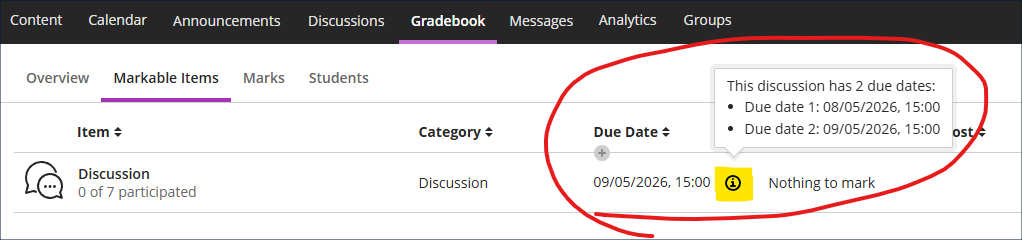
Following the December 2025 and March 2026 upgrades, which, respectively, brought in the options to specify participation requirements and add a second due date when using marked discussions, May’s upgrade will, where a second due date has been set, allow staff to view both discussion due dates in the gradebook.
• ‘i’ info button highlighted with a pop-up showing due dates for a marked discussion
Staff who are interested in finding out more about learning technologies and NILE are invited to join the Learning Technology / NILE Community Group on the University’s Engage platform. The purpose of the community is to share information and good practice concerning the use of learning technologies at UON. When joining the community, if you are prompted to login please use your usual UON staff username and password. By joining the Learning Technology / NILE Community you will receive calendar invitations to our regular live community events:
As ever, please get in touch with your learning technologist if you would like any more information about the new features available in this month’s upgrade: Who is my learning technologist?
The new features in this month’s Blackboard’s upgrade will be available from Friday 3rd April. This month’s upgrade includes the following new/improved features to Ultra courses:
Specify assignment submission type with Blackboard assignments
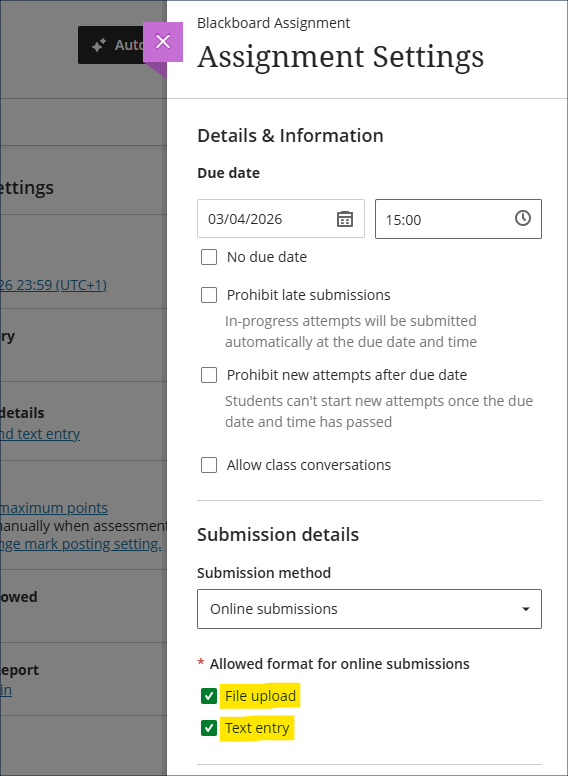
Following Friday’s upgrade, staff setting up Blackboard assignments will be able to specify whether students can upload a file, submit a text entry, or both. The default setting is with both options enabled, and we recommend leaving both enabled as this means that students will not be prevented from submitting anything they can currently submit. The new file upload block makes it considerably easier for students to submit files to Blackboard assignments, and they can submit one or many files in the same submission.
Important note for Kaltura submissions. Please be aware that for students to be able to submit Kaltura videos for assessment, the ‘Text entry’ box must be ticked, because it is this box that allows access to the ‘+’ (plus) button, which allows students to access to the Content Market within which Kaltura is situated. Where staff want students to submit both a Kaltura video and supporting documents, both boxes must be ticked.
• Blackboard assignment setup screen with ‘File upload’ and ‘Text entry’ options highlighted
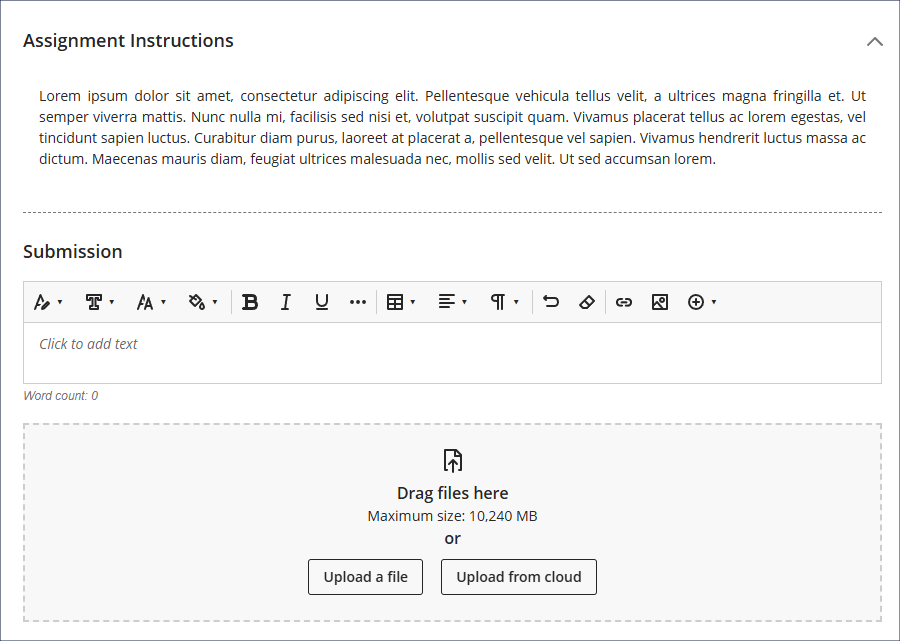
The student view of the updated assignment submission boxes is show below, with the ‘Text entry’ box immediately below the assignment instructions, and the ‘File upload’ box at the bottom. While the ‘Upload from cloud’ button will be visible to students, it is not functional, and students need to use the ‘Upload a file’ button to attach files to their submissions. As is currently the case, files must be less than 1GB in size, and media files must be submitted using Kaltura. See our FAQ ‘Why can’t I upload my file to NILE?’ for more information.
• Student view of the upgraded Blackboard assignment submission interface.
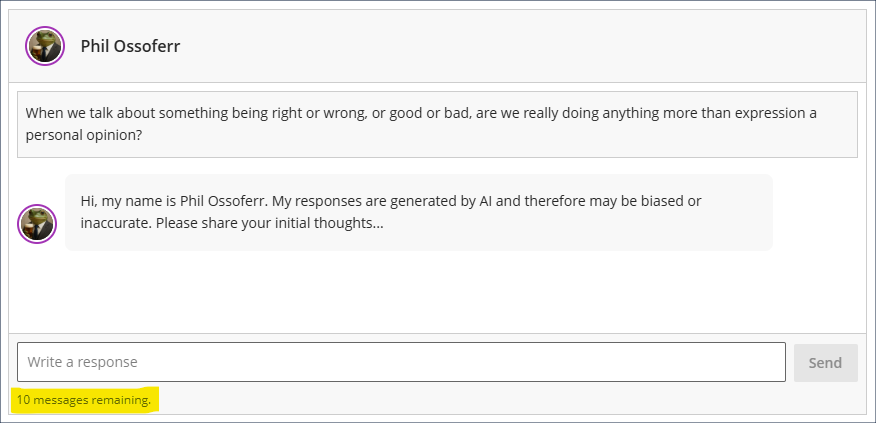
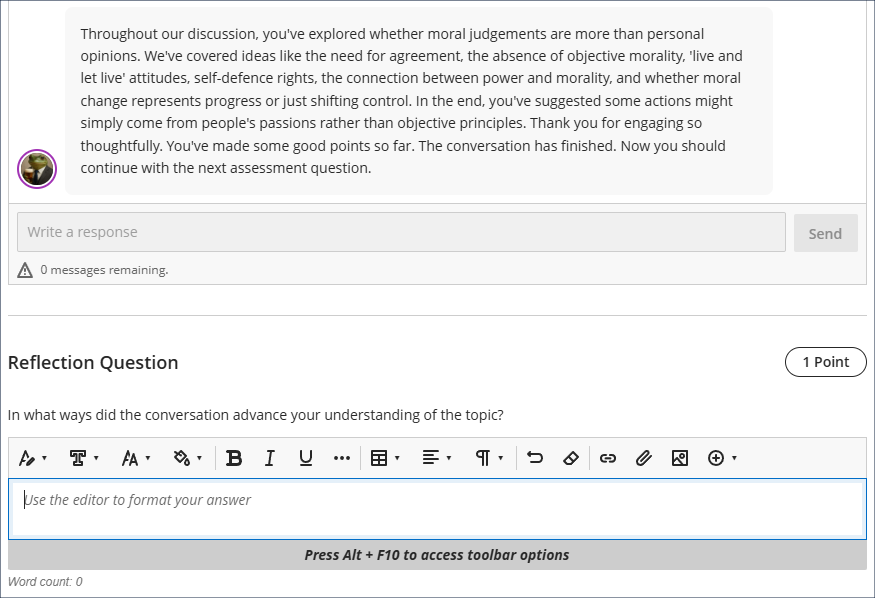
April’s upgrade will allow staff to add limits to AI conversations. In response to feedback about the open-endedness of AI conversations, staff can now optionally specify how many responses a student can make. Students will not be able to go beyond this message limit, but can still submit before the message limit is reached. If message limits are specified students will see this, and will be kept updated as to the number of messages remaining. Upon submission of their last message, the AI persona will summarise the discussion, thank the student for their responses, and will prompt them to complete the reflection question.
• AI conversation setup screen with new conversation constraints feature highlighted• Student view of AI conversation with messages remaining info highlighted• Student view of AI conversation, showing wrap-up message from the AI persona and the reflection question
Staff who are interested in finding out more about learning technologies and NILE are invited to join the Learning Technology / NILE Community Group on the University’s Engage platform. The purpose of the community is to share information and good practice concerning the use of learning technologies at UON. When joining the community, if you are prompted to login please use your usual UON staff username and password. By joining the Learning Technology / NILE Community you will receive calendar invitations to our regular live community events:
As ever, please get in touch with your learning technologist if you would like any more information about the new features available in this month’s upgrade: Who is my learning technologist?
The new features in this month’s Blackboard’s upgrade will be available from Friday 6th March. This month’s upgrade includes the following new/improved features to Ultra courses:
Generate knowledge checks in Ultra documents with AI Design Assistant
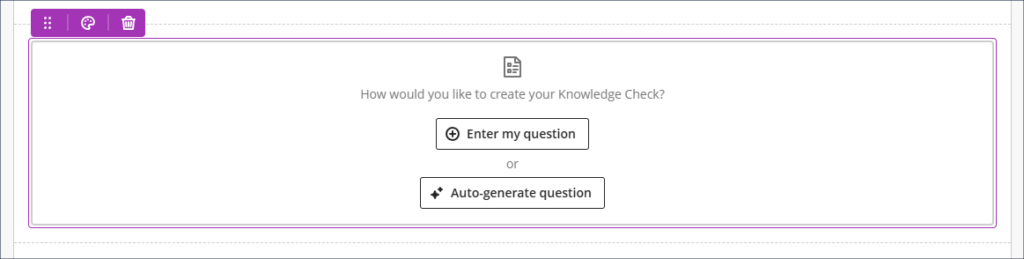
Staff using the knowledge check tool to add interactive quiz elements into their Ultra documents will find, following the March upgrade, that knowledge check questions can be auto-generated. The current option to create questions manually still exists via the ‘Enter my question’ option, but a new ‘Auto-generate question’ option will be in place from Friday. This new option will auto-generate four questions based on the content in the Ultra document (although staff can use the ‘Select course items’ option to broaden the range of material on which the AI Design Assistant bases the questions), and from these four options staff can choose one to add, editing it beforehand should they wish to.
• Ultra document with ‘knowledge check’ tool highlighted• Upgraded knowledge check tool displaying options to ‘enter my question’ or ‘auto-generate question
Add a second due date and participation requirements in discussions
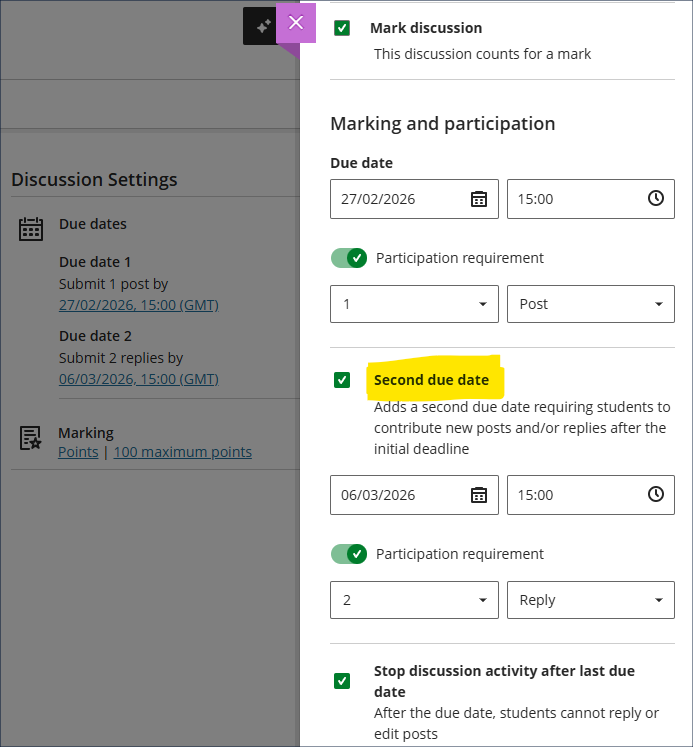
Following the December 2025 upgrade which introduced the option to specify participation requirements in discussions, the March upgrade will bring in the option to specify a second due date when using discussions, along with a second set of participation requirements. An example of how this might be used is shown in the screenshot below, where students are required to make a single post, and then, a week later, to have made two replies.
• Discussions with second due date option highlighted
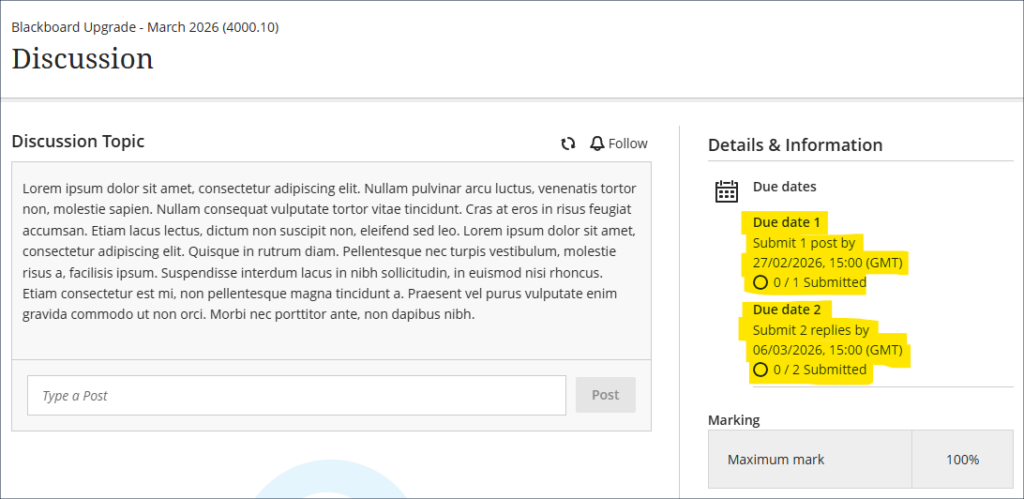
The participation requirements will be displayed to students when they view the discussion, and the progress tracker will show them when they have met the minimum requirements.
• Student view of discussions with multiple due dates and participation requirements highlighted
Setting participation requirements does not affect any gradebook settings. For example, if a student has not met the minimum participation requirements this will not affect whether or not the discussion can be marked.
Partial credit limits removed for multiple option test questions
The March upgrade will see some restrictions removed from the percentages that can be awarded for partial and negative credit-enabled multiple option and multiple choice test questions.
1. Multiple option test questions
A multiple option question, also called a multiple answer question, is a question where students are presented with a number of possible answers and can select more than one answer. Multiple option questions can have more than one correct answer, but it is not a requirement for a multiple option question to have more than one correct answer.
Currently, the following are prohibited when setting multiple option questions:
Awarding a total percentage for all the correct answers that is not equal to 100%.
Awarding a positive percentage for an incorrect answer.
Following the March upgrade, staff setting multiple option questions will be able to:
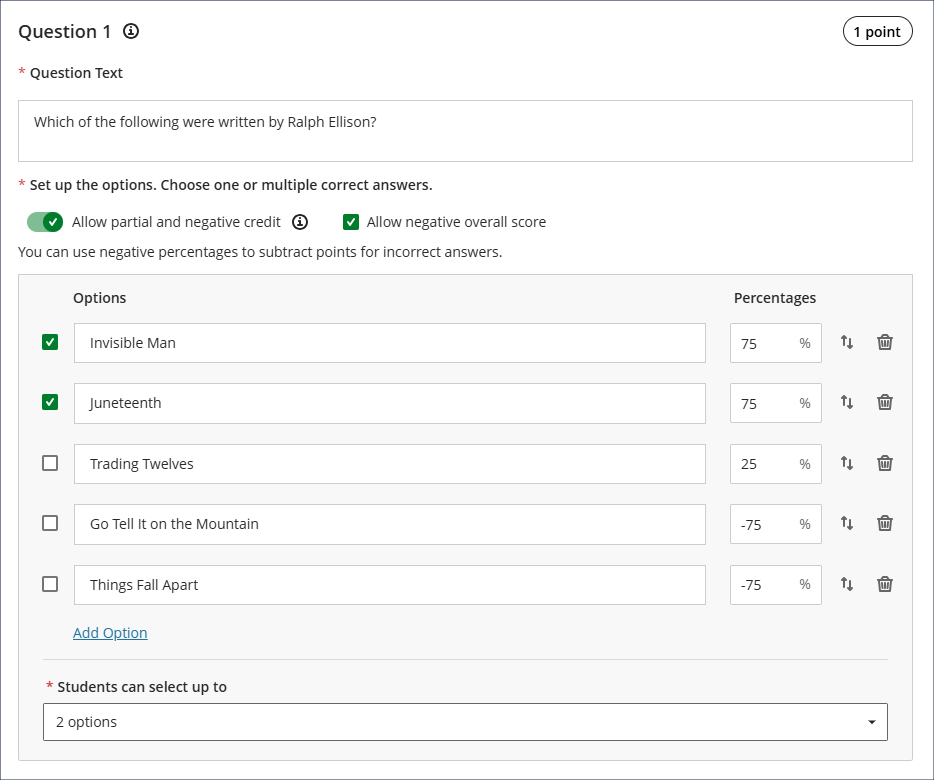
Where there is more than one correct answer, award a total percentage for the multiple correct answers that is equal to or above 100%. (Where there is only one correct answer to a multiple option question, the correct answer can only have a value of 100%.)
Award a positive percentage for an incorrect answer.
Unchanged are the following:
The combined score for the correct answers cannot be less than 100%.
A correct answer cannot receive a negative percentage.
No single answer can score more than 100% or less than -100%.
An example of how this could work is shown in the screenshot below. In the question the maximum and minimum scores are the same, and students can score between -150% and 150% on this test question. And a small positive percentage is allowed for one of the incorrect answers, as while it is not a fully correct answer it is not as incorrect as the other two incorrect answers. Note that the correct answers are the ones marked with a tick in the box to the left of the answers.
• Multiple option/answer test with updated settings in use
2. Multiple choice questions
A multiple choice question is one where students are presented with a number of possible answers and can select only one answer.
When setting up a multiple choice question the correct answer must still equal 100%. However, following the March upgrade the incorrect answers in a multiple choice test can score anywhere between 100% and -100%, whereas prior to the upgrade incorrect answers could only score between 0% and -100%.
Advice when setting up multiple option/choice questions
Please note that while these changes allow for more flexibility, particularly when setting multiple option/choice questions, it does now require more care to be taken when using partial and negative credit scoring, not least because staff will no longer be required to enter a negative score for an incorrect response, so there is now nothing preventing a question from awarding as many, or even more, points for getting the answer wrong as for getting it right. To award a negative score for an answer, staff must add a minus in front of the percentage, as, following the upgrade, this will no longer be done automatically or enforced, and there are no warnings given when positive percentages are entered for incorrect answers. Please do not assume that the percentages awarded for incorrect responses are the percentages being deducted. They are only being deducted if there is a minus in front of the percentage.
While there is now more flexibility (and complexity) in this area, staff do not have to use partial and negative credit when setting up multiple option/choice questions. However, staff who would like to make use of partial and negative credit scoring but who are not confident to do so are welcome to contact their learning technologist to arrange a training session about how these features work.
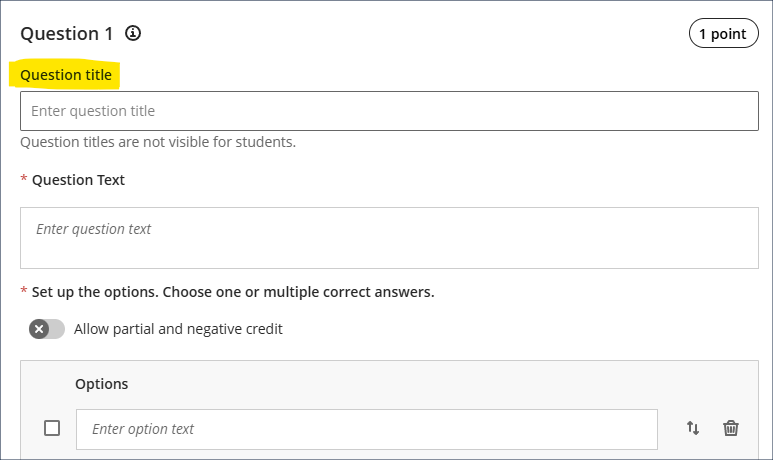
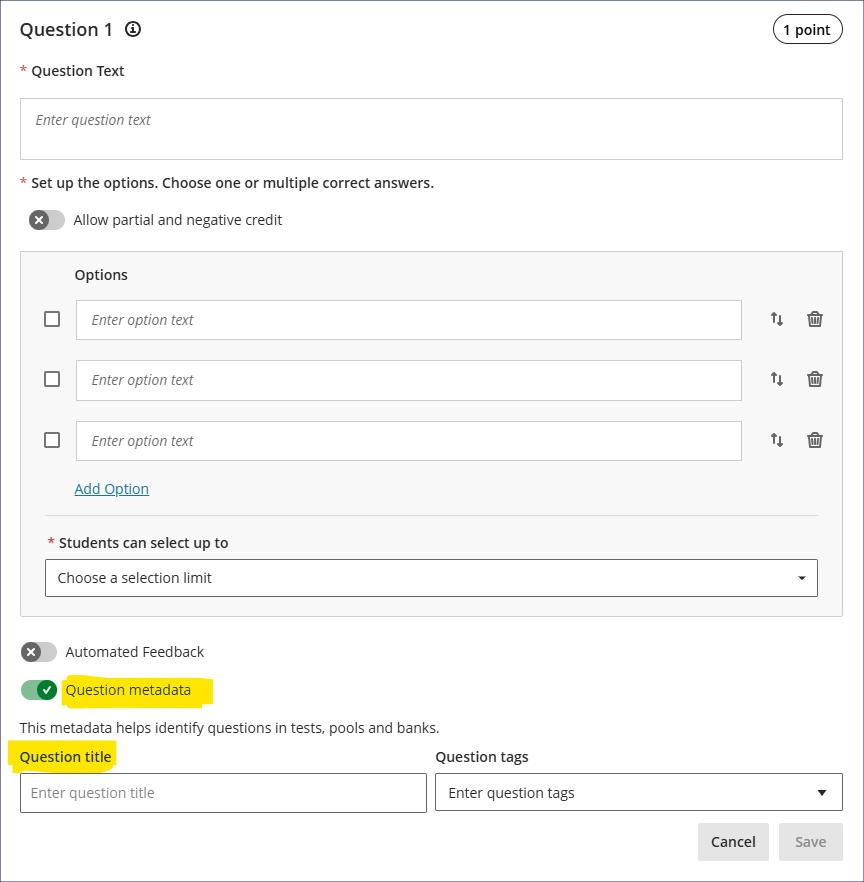
In the September 2025 upgrade Blackboard introduced the option to add titles to test questions. These question titles are optional, not visible to students, and are designed to help staff locate previously created questions for reuse in other tests. Following requests from staff, many of whom found the prominent placement of the question title field to be unhelpful, the March upgrade will see the question title field moved to the question metadata section of the question setup options, which more accurately reflects its purpose.
• Test question with current location of question title highlighted• Test question highlighting new location of the question title field within the question metadata settings
Staff who are interested in finding out more about learning technologies and NILE are invited to join the Learning Technology / NILE Community Group on the University’s Engage platform. The purpose of the community is to share information and good practice concerning the use of learning technologies at UON. When joining the community, if you are prompted to login please use your usual UON staff username and password. By joining the Learning Technology / NILE Community you will receive calendar invitations to our regular live community events:
As ever, please get in touch with your learning technologist if you would like any more information about the new features available in this month’s upgrade: Who is my learning technologist?
The new features in this month’s Blackboard’s upgrade will be available from Friday 6th February. This month’s upgrade includes the following new/improved features to Ultra courses:
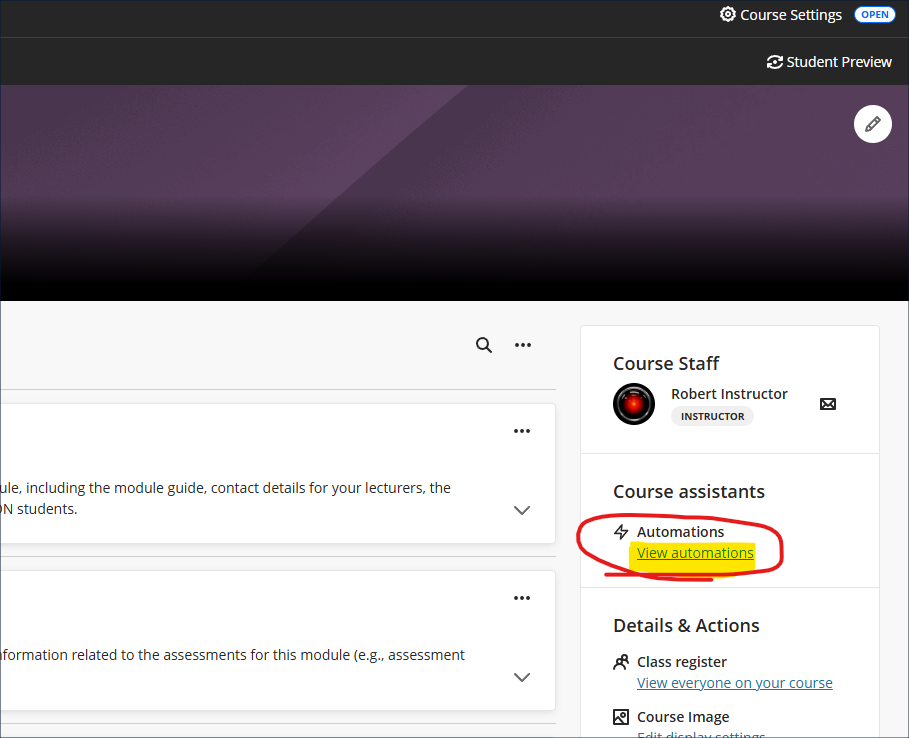
Automations allow staff to configure triggers that prompt NILE to email students automatically when certain criteria are met. Following the upgrade staff will be able to set up automatic congratulatory emails for students who have achieved above a specified threshold on assessments, and to send supportive emails for those who have scored below a specified threshold. Staff can also send reminder emails to students who have unread feedback, although please note that this applies only to Blackboard assignments, not Turnitin assignments.
• Ultra course with ‘View automations’ highlighted
Note that congratulatory/supportive automations are only triggered by posted marks in the gradebook. Unposted marks will not activate the trigger. For example, if a student takes a formative test and receives their mark immediately upon completion of the test, an automation linked to completion of that formative test would be triggered immediately. However, if a student submits a manually marked assignment and receives a grade for it, an automation linked to that assignment will not be triggered when the mark is entered, only when the mark entered is actually posted.
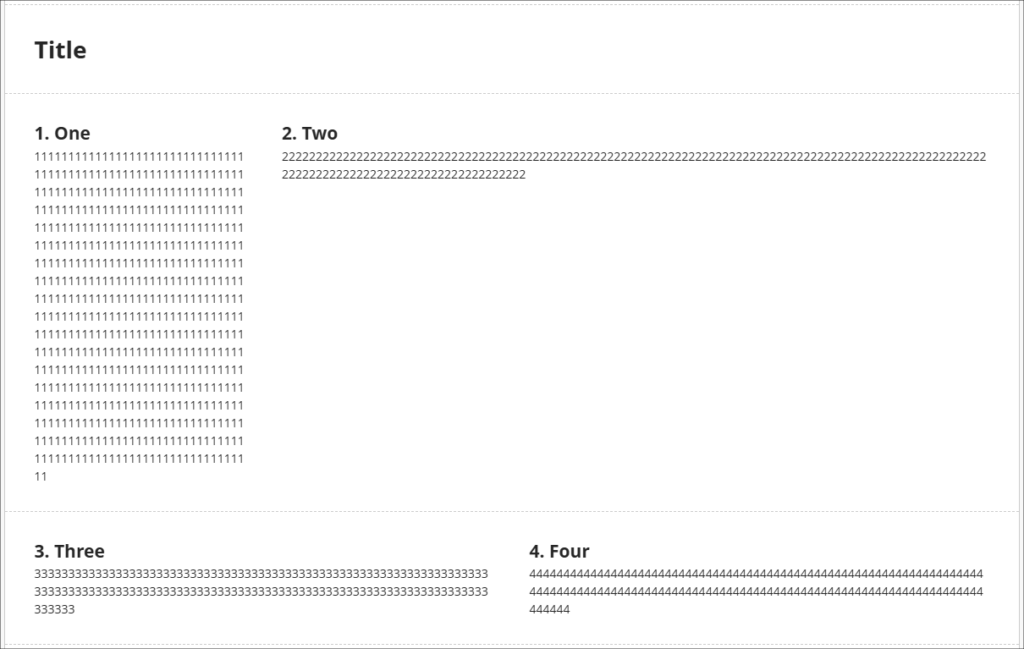
February’s upgrade includes an enhancement to Ultra documents entitled, ‘Stack blocks vertically in documents’. How this improves Ultra documents is as follows. Currently, if you have made use of multiple columns in an Ultra document you may have found that each column can only contain one block. In the following example you can see that the first row of my Ultra document (which contains the blocks titled ‘1. One’, and ‘2. Two’) has been divided into two columns which take up, respectively, 1/4 and 3/4 of the horizonal screen space. This has left me with a lot of space underneath block ‘2, Two’, but if I want to move any blocks underneath ‘2. Two’, I cannot do this as a column can only contain one block. I can, of course, take the text from other blocks and copy and paste it into the ‘2. Two’ block to fill up the space, but this is time consuming, and also frustrating if I just want to try out some different layout options.
• Pre-upgrade view of an Ultra document, showing unused screen space under block two in column two of row one
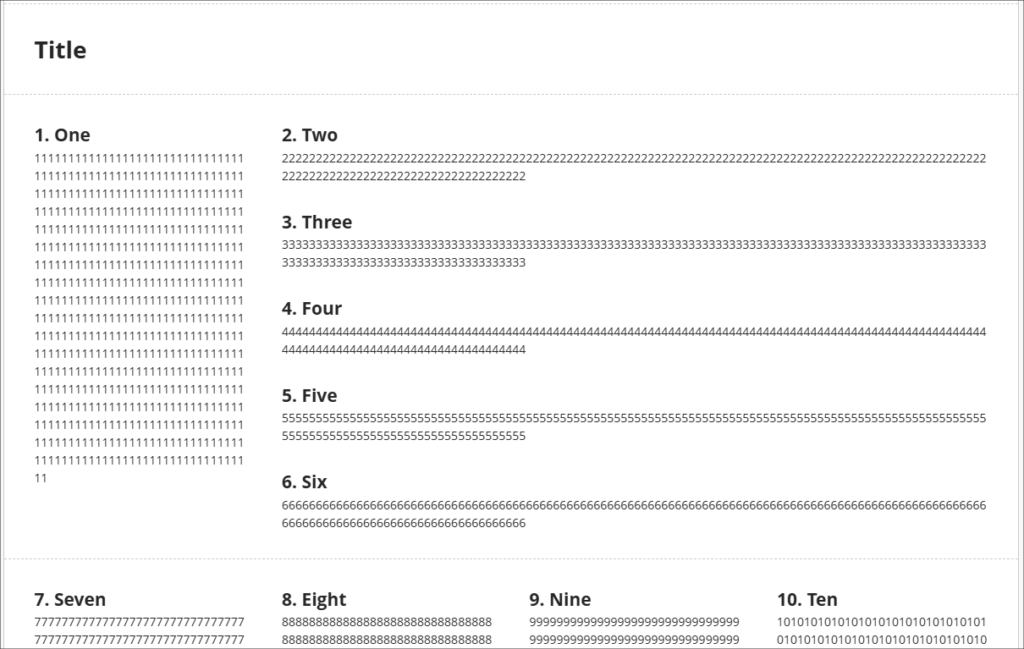
The ‘Stack blocks vertically in documents’ upgrade means that a column can contain multiple blocks, so after the upgrade I can now fill the space under ‘2. Two’ with additional blocks by dragging and dropping them in place.
• Post-upgrade view of an Ultra document, showing multiple blocks stacked vertically in row one, column two
However, do bear in mind that once in a column together the blocks will share the same screen width. So, if I adjust the width of block ‘2. Two’ I will also adjust the width of all of the blocks in that column.
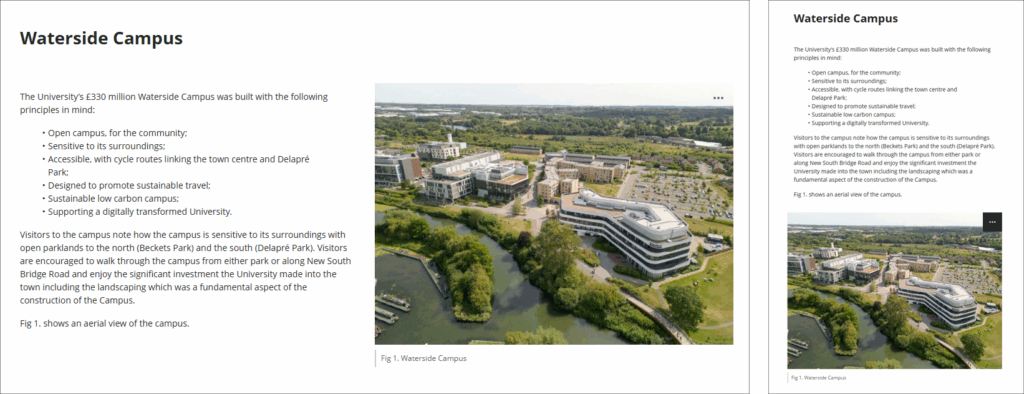
Also important to bear in mind that while your layout choices will be respected while students view Ultra documents on their laptops/desktop, on mobile devices the blocks will resize and flow into a single column, so instructions such as ‘immediately above/below’, or ‘to the left/right of’ will not necessarily make sense to all users. So, for example, rather than referring to an image as being on the right, it would be better to title the image (e.g., Fig 1.) and refer to the image by it’s title than by its relative position.
In the following screenshot you can see how students view the same page on a laptop (shown on the left) and on a mobile device (on the right).
• Ultra document showing the same page in laptop/desktop view (left), and in mobile view (right)
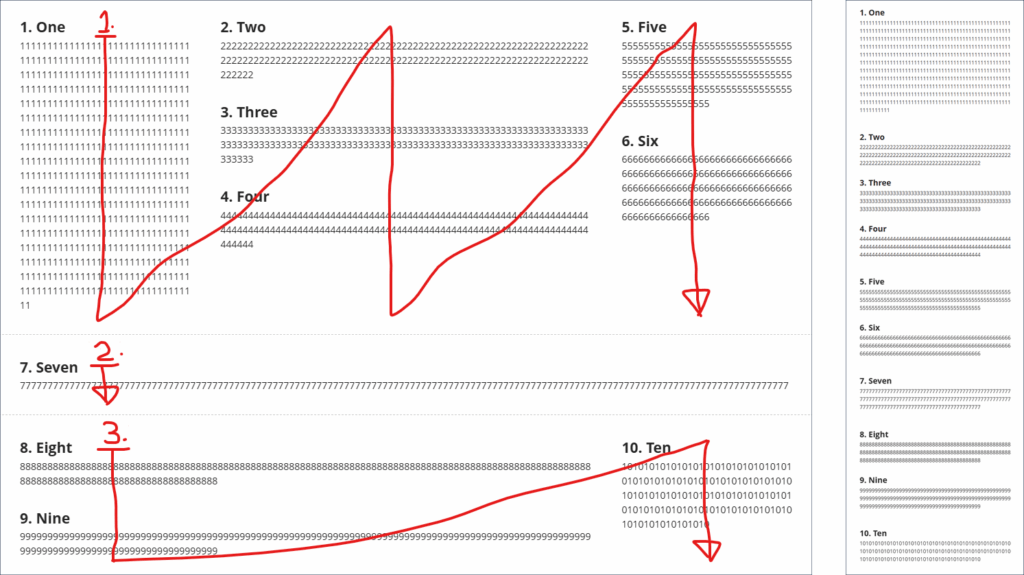
In case it’s helpful to know, when using multiple columns, the blocks always reflow in a simple, predictable matter, from the first row, first column, first block, i.e., the block in the top left position, down the column if there are multiple blocks in the column, but not crossing into the next row, then to the next column(s) on the right in that row. Once there are no more blocks in the row, the next row and the columns therein are selected, and so on. The following (rather roughly annotated) image shows an example of how an Ultra document with a complex layout on a laptop (the image on the left) will reflow when viewed on a mobile device (the image on the right).
Convert a Word/PowerPoint/PDF file to an Ultra document
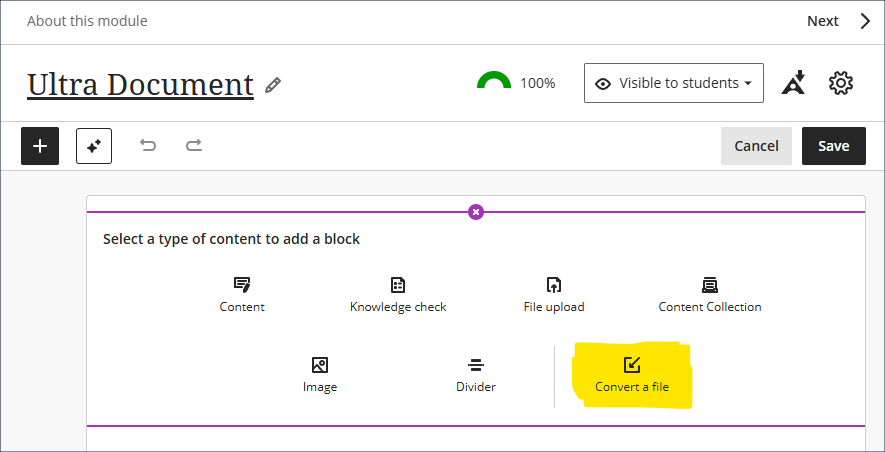
Okay, so this one isn’t actually new, but it’s pretty good and I get the impression that not too many people know about it, so here it is again. Long story short – you have various Word, PowerPoint, and PDF files in your Ultra course, and you’d really like them to be Ultra documents* but you don’t have the time or the patience to laboriously copy and paste everything into Ultra documents, so wouldn’t it be great if there was the option to auto-convert Word/PowerPoint/PDF files to Ultra documents …
• Ultra document with ‘Convert a file’ option highlighted
*The key reasons that you’d really like them to be Ultra documents, of course, is because this not only makes them look better, but it makes them much more accessible and mobile friendly, and really easy for students to access in alternative formats … and, yes, students can still download and print Ultra documents.
Have you put together a great NILE Ultra course for 2025/26? Or do you know someone who did?
We’re really keen to highlight and celebrate examples of good practice with Ultra, so if you or someone you know has designed a good Ultra course we’d really like to hear from you.
You can nominate yourself, or someone else, or multiple members of staff if the Ultra course has been created by more than one person. In your nomination we just need to know who it is that you’re nominating, which module the nomination is for, and what it is that you think has been done well. And you don’t have to tell us who is making the nomination if you don’t want to.
Nominated courses will be reviewed and Ultra Course Awards will be given according to the following criteria:
The course is clearly laid out and well-organised at the top level via the use of content containers (i.e., learning modules and/or folders);
Content items within top-level content containers are clearly named and easily identifiable for students, and, where necessary, sub-folders are used to organise content within the top-level content containers;
The course contains online activities for students to take part in;
The course has not previously won an Ultra Course Award.
If you have created a great online learning resource for a course using H5P, Xerte, or Video, we’d like to hear from you. We are keen to highlight and celebrate examples of content which you are proud of at a virtual online showcase on Friday 27th March, 2026. Six slots of fifteen minutes are available for you to present with Q&A.
Please complete the online entry form with your entry by deadline Friday 6th March, 2026.
Staff who are interested in finding out more about learning technologies and NILE are invited to join the Learning Technology / NILE Community Group on the University’s Engage platform. The purpose of the community is to share information and good practice concerning the use of learning technologies at UON. When joining the community, if you are prompted to login please use your usual UON staff username and password. By joining the Learning Technology / NILE Community you will receive calendar invitations to our regular live community events:
As ever, please get in touch with your learning technologist if you would like any more information about the new features available in this month’s upgrade: Who is my learning technologist?