
The new features in this month’s Blackboard’s upgrade will be available from Friday 5th June. This month’s upgrade includes the following new/improved features to Ultra courses:
- Provide answer-level feedback for multiple choice and multiple answer questions
- Lock response options in a fixed position for multiple choice and multiple answer questions in Blackboard tests
- Track announcement engagement by student
Provide answer-level feedback for multiple choice and multiple answer questions
When creating or editing multiple choice or multiple answer questions, June’s upgrade will bring in an ‘Option Feedback’ tool which allows staff to add feedback to each answer response, thus providing students with more detailed feedback about why certain responses were correct or incorrect. When adding feedback, staff do not have to enter feedback for all responses, so can, for example, only add feedback for incorrect responses.
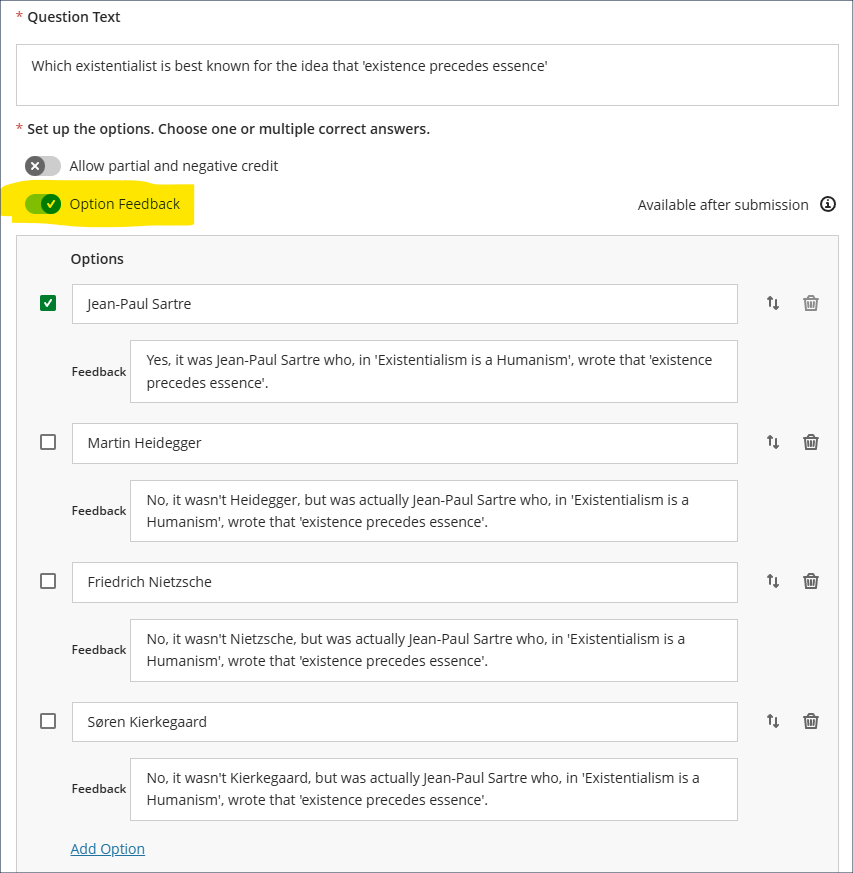
The release timing of the feedback is controlled in the assessment setting panel, so staff can choose when to provide the question feedback, e.g. immediately upon submission of the test, or only when all grades are posted.
More information about setting up and deploying tests in NILE is available at: Learning Technology Team – Ultra Workflow 3: Blackboard Test
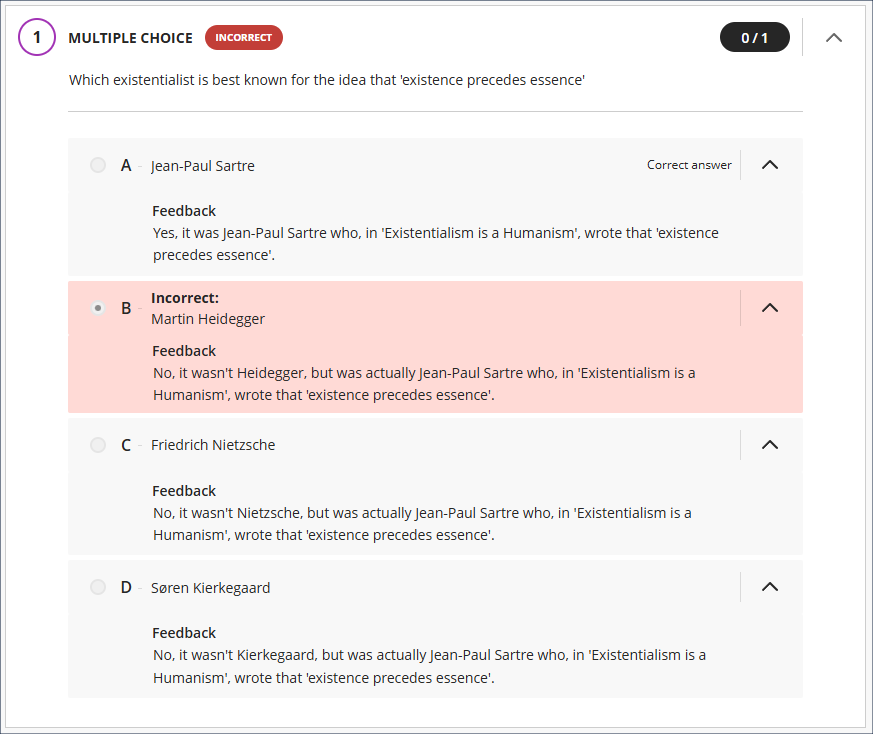
Please note that in this initial release of the option feedback tool, students will see the feedback for all responses, not just the ones they selected (as shown in the screenshot below). However, this will be changed in a later release so that feedback is only displayed to each student for the responses they actually selected.
Lock response options in a fixed position for multiple choice and multiple answer questions in Blackboard tests
Following June’s upgrade, staff using Blackboard tests will be able to lock multiple choice/answer responses in place when using the ‘randomise answers’ setting. The main use case for this is where staff want to lock responses such as ‘all of the above’ or ‘none of the above’ in place while randomising the display of the remaining responses (as in the screenshot below).
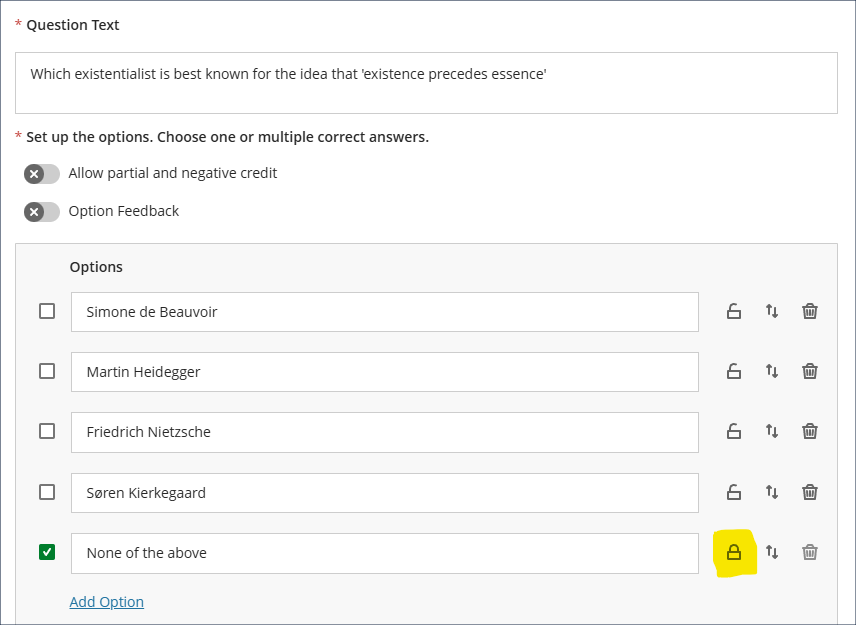
However, as the randomise answers test setting applies to all multiple choice/answer questions in a test (i.e. staff cannot specify that some questions should have have randomised answers and some should not), the lock tool allows for scenarios in which staff want the responses to most questions randomised, but where there are certain questions in which all the responses to a particular question need to be displayed in a particular order, therefore there is no limit to the number of responses that can be locked in a test question.
In the following screenshot, all the responses for the question are locked, so that although other test questions will have their responses randomised, this one will always display the responses in the order specified.
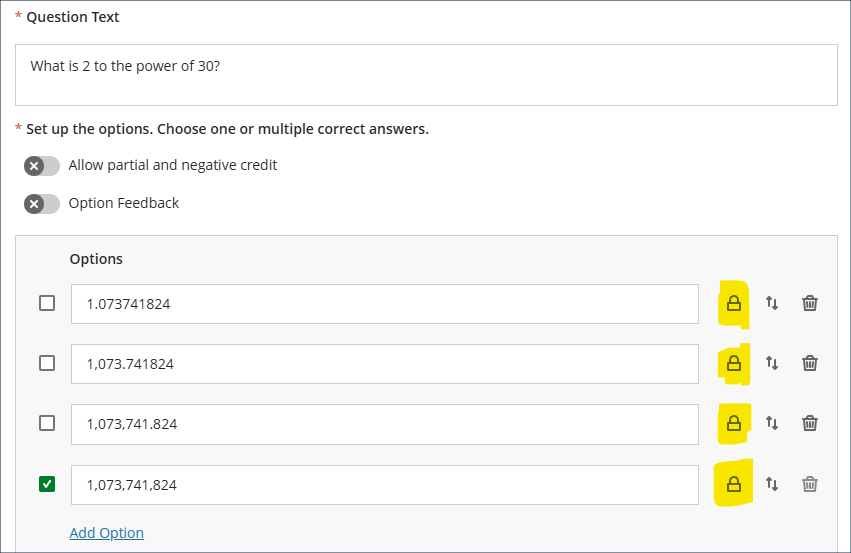
Note that the ability to lock answers in place will only display once randomise answers has been selected in the assessment settings panel.
More information about setting up and deploying tests in NILE is available at: Learning Technology Team – Ultra Workflow 3: Blackboard Test
Track announcement engagement by student
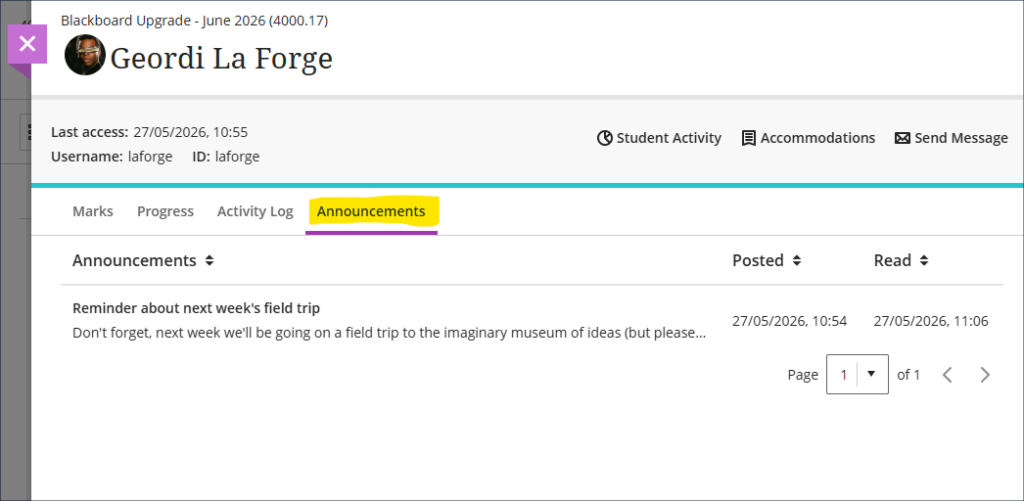
In addition to the Marks, Progress, and Activity Log tabs, the June upgrade will bring in an Announcements tab to the student overview panel in NILE courses, showing which announcements each student has marked as read and when. However (and it’s a big ‘however’), despite appearing to do so, the announcements tracker does not actually indicate whether a student has read an announcement or not, only whether they have marked it as read or not. Students can read an announcement but not mark it as read, and can not read an announcement but mark it as read. Therefore, because there is no necessary relationship between marking an announcement as read and actually reading it, staff should treat the information in this tab (and also in the review student engagement with announcements panel) with an appropriate degree of caution.
Learning technology / NILE community group
Staff who are interested in finding out more about learning technologies and NILE are invited to join the Learning Technology / NILE Community Group on the University’s Engage platform. The purpose of the community is to share information and good practice concerning the use of learning technologies at UON. When joining the community, if you are prompted to login please use your usual UON staff username and password. By joining the Learning Technology / NILE Community you will receive calendar invitations to our regular live community events:
Join the Learning Technology / NILE Community Group
More information
As ever, please get in touch with your learning technologist if you would like any more information about the new features available in this month’s upgrade: Who is my learning technologist?
