
The new features in this month’s Blackboard’s upgrade will be available from Friday 3rd July. This month’s upgrade includes the following new/improved features to Ultra courses:
- 26/27 NILE courses now available
- Specify time limits for AI conversations
- Add descriptions to discussions and journals
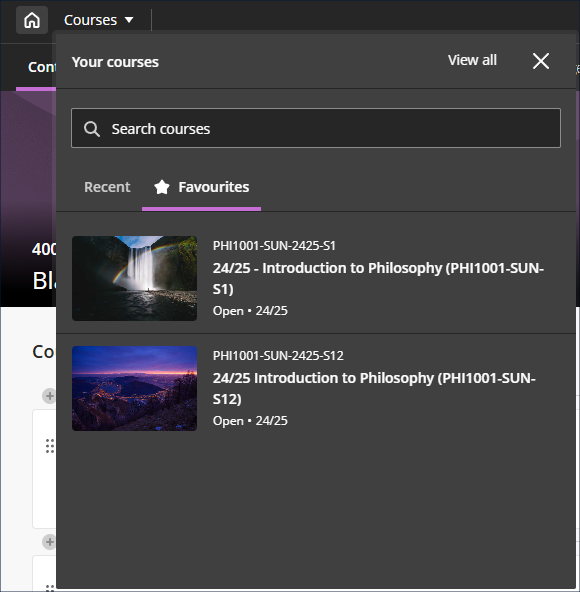
- Find your favourite courses faster with course switcher
26/27 NILE courses now available
NILE courses for the 26/27 academic year are now available. Full guidance about how to set up your NILE courses for teaching is also available, along with written and video guidance about how to safely copy across your 25/26 NILE courses to your 26/27 NILE courses.
- Learning Technology Team Guide – Getting your NILE course set up and ready for teaching
- Learning Technology Team FAQ – How do I copy content between NILE Ultra courses?
Specify time limits for AI conversations
July’s upgrade builds on April’s upgrade in which conversation constraints were introduced to AI conversations. April’s upgrade introduced the option for staff to specify a maximum number of replies a student can make to an AI conversation. July’s upgrade allows staff to specify a time limit for AI conversations, which can be used together with, or independently of, reply limits.
Staff are not required to specify either the maximum number or replies a student can make or the maximum time a conversation may last, but can optionally use one or both of these to constrain the conversation. Where both are used, whichever constraint is reached first will end the conversation. When the conversation ends due to a constraint being reached the AI persona will wrap up the conversation, thanking the student for their participation, summarising the conversation, and directing the student to complete the reflection question. Where a limit to the number of replies is set, a student can still use the ‘Save and close’ and function and is not required to complete the conversation in a single sitting. However, while a student can save and close a conversation while the timer is running, this will not pause the timer, which will continue to run regardless. If the timer runs out while the conversation has been saved and closed the AI persona will not wrap up the conversation.
The options to specify time and/or reply limits are available via the ‘Conversation constrains’ menu when setting up the conversation.
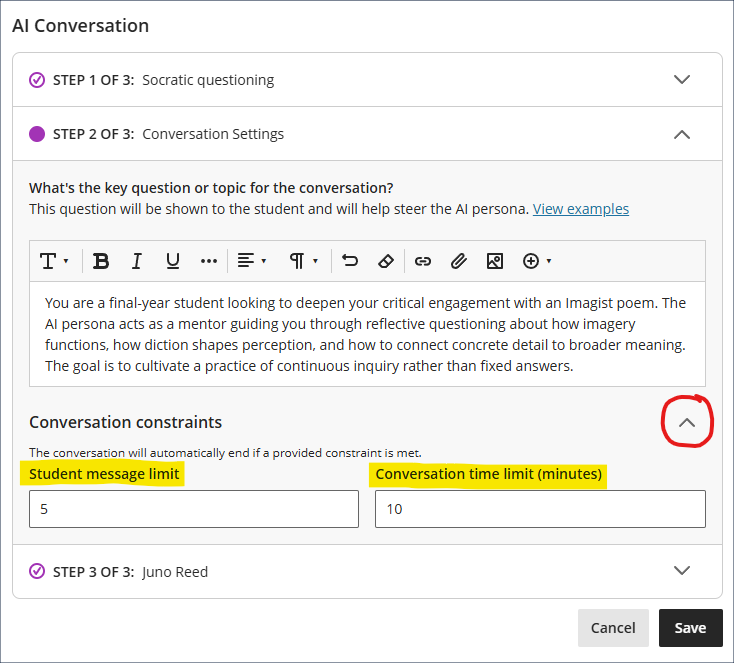
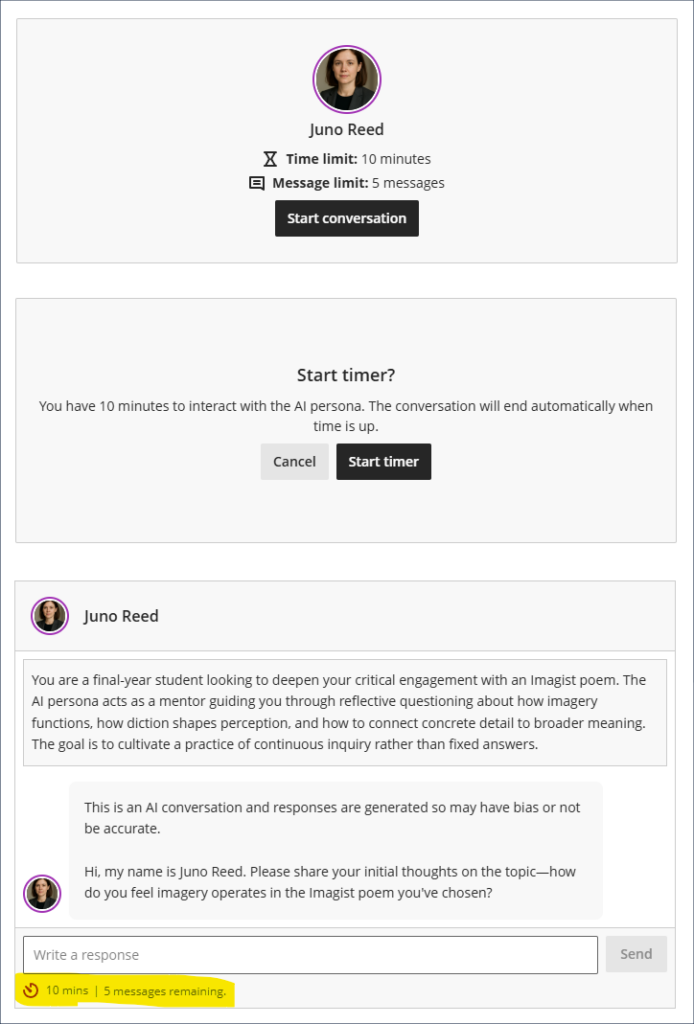
When students begin an AI conversation which has had constraints applied, this will be displayed when launching the conversation. If a timer has been set, an additional screen will show following the ‘Start conversation’ screen at which students will be prompted to ‘Start timer’ (or to cancel if they are not ready to begin). Once the timer has started it will not stop. If the student chooses to save and close the conversation, the timer will still run in the background. Once the conversation has started the remaining time and the remaining number of replies is shown at the bottom of the conversation. Note that the timer applies only to the AI conversation, not to the reflection question.
More information about setting up and using AI conversations is available at: Blackboard Help – AI Conversations
Add descriptions to discussions and journals
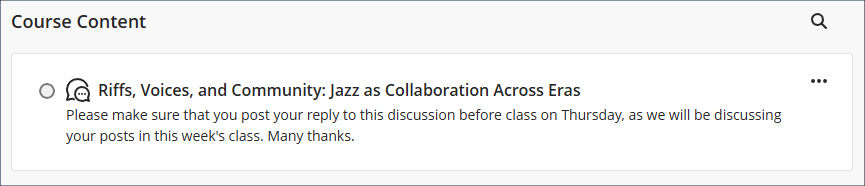
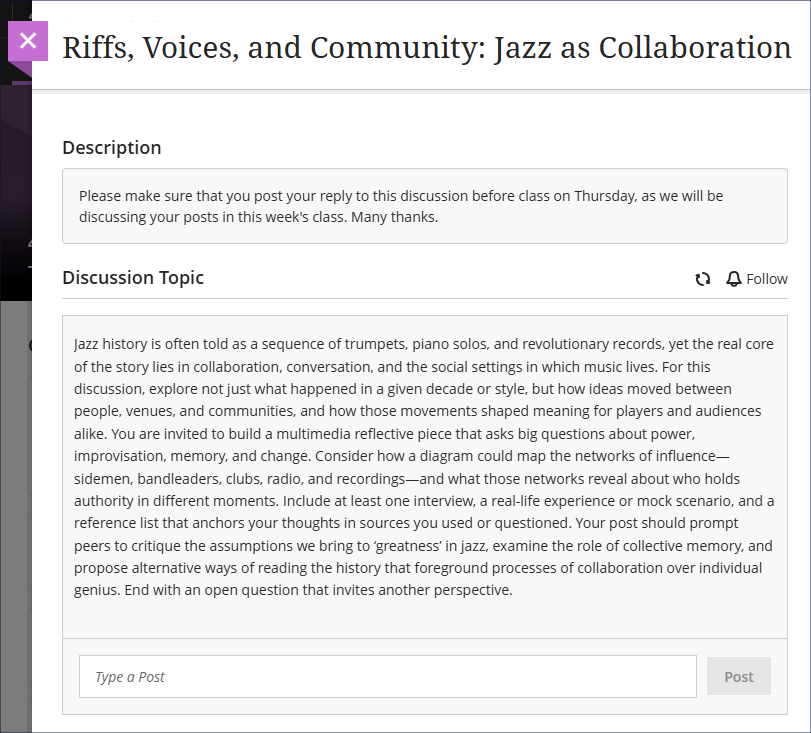
Staff can now add descriptions to discussions and journals. These descriptions are optional and are separate from the discussion/journal topic. Currently, the topic for the discussion or journal is shown on the course content page immediately below the discussion or journal title. Following July’s upgrade the topic will no longer be shown on the course content page, and will only be visible to students once they have entered the discussion or journal. The space below the discussion/journal title on the course content page will be reserved for the description, and where a description is not used this field will remain blank.
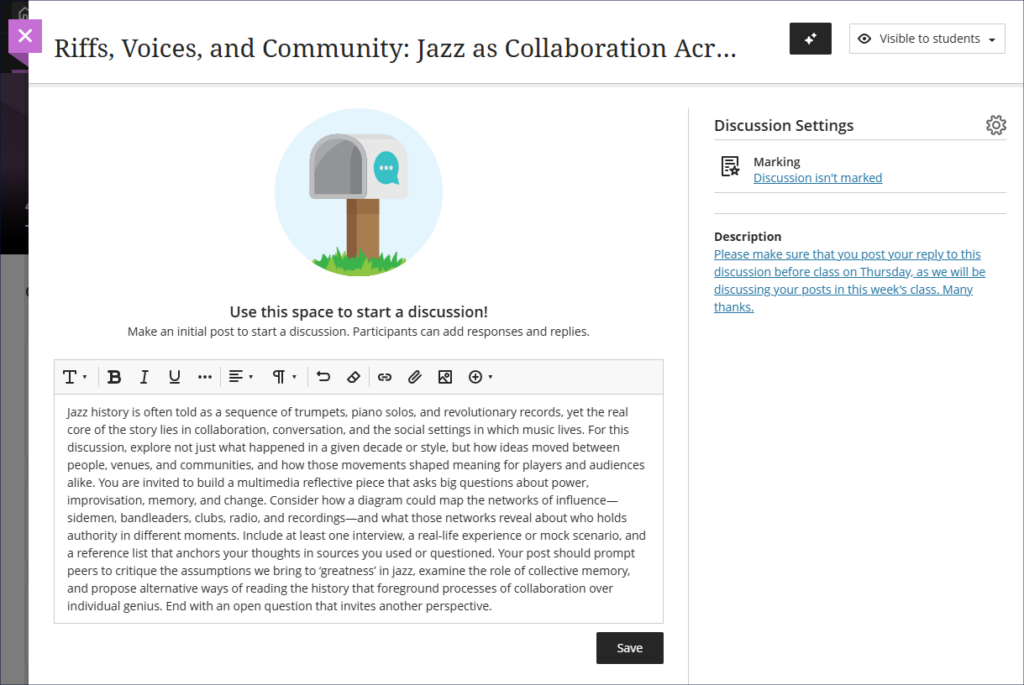
An example of how this might be used is as follows. The discussion topic would be used as normal, as the initial stimulus post to which students would post their replies. The description, which students will see on the course content page before entering the discussion, could then be used to add useful information about when to post their replies or to make their journal entries: for example, to remind students to complete their discussion post (or journal entry) before coming to class on such and such a date, as shown in the screenshot below:
The description would then display to students in the NILE course on the course content page as so:
And the actual topic for discussion would only be seen upon entering the discussion, along with the description:
More information about setting up and using Blackboard discussions is available at: Blackboard Help – Discussions
More information about setting up and using Blackboard journals is available at: Blackboard Help – Journals
Find your favourite courses faster with course switcher
Building on May’s upgrade, which introduced a search option to the course switcher, a favourites tab has now been included to the course switcher, allowing staff and students to quickly move between their favourite courses.
Learning technology / NILE community group
Staff who are interested in finding out more about learning technologies and NILE are invited to join the Learning Technology / NILE Community Group on the University’s Engage platform. The purpose of the community is to share information and good practice concerning the use of learning technologies at UON. When joining the community, if you are prompted to login please use your usual UON staff username and password. By joining the Learning Technology / NILE Community you will receive calendar invitations to our regular live community events:
Join the Learning Technology / NILE Community Group
More information
As ever, please get in touch with your learning technologist if you would like any more information about the new features available in this month’s upgrade: Who is my learning technologist?