
The new features in this month’s Blackboard’s upgrade will be available from Friday 3rd April. This month’s upgrade includes the following new/improved features to Ultra courses:
- Specify assignment submission type with Blackboard assignments
- Add conversation constraints to AI conversations
- Upgrades to Collaborate (available from 16th April)
Specify assignment submission type with Blackboard assignments
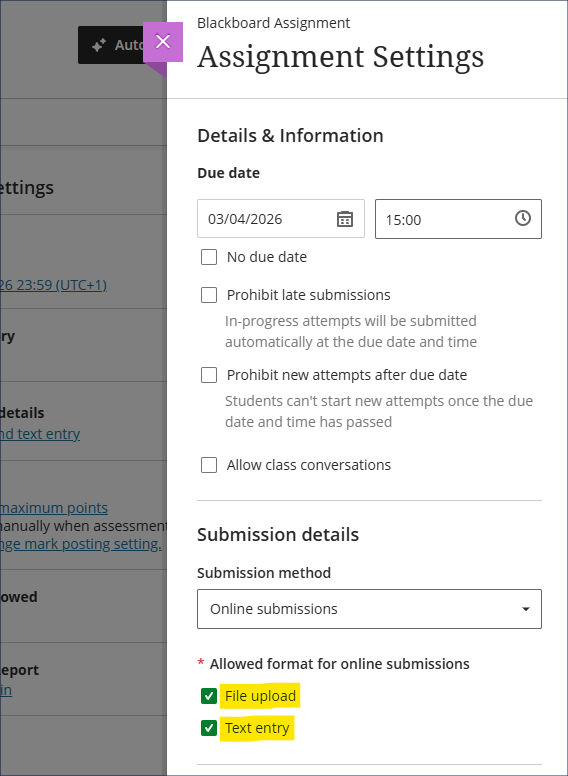
Following Friday’s upgrade, staff setting up Blackboard assignments will be able to specify whether students can upload a file, submit a text entry, or both. The default setting is with both options enabled, and we recommend leaving both enabled as this means that students will not be prevented from submitting anything they can currently submit. The new file upload block makes it considerably easier for students to submit files to Blackboard assignments, and they can submit one or many files in the same submission.
Important note for Kaltura submissions.
Please be aware that for students to be able to submit Kaltura videos for assessment, the ‘Text entry’ box must be ticked, because it is this box that allows access to the ‘+’ (plus) button, which allows students to access to the Content Market within which Kaltura is situated. Where staff want students to submit both a Kaltura video and supporting documents, both boxes must be ticked.
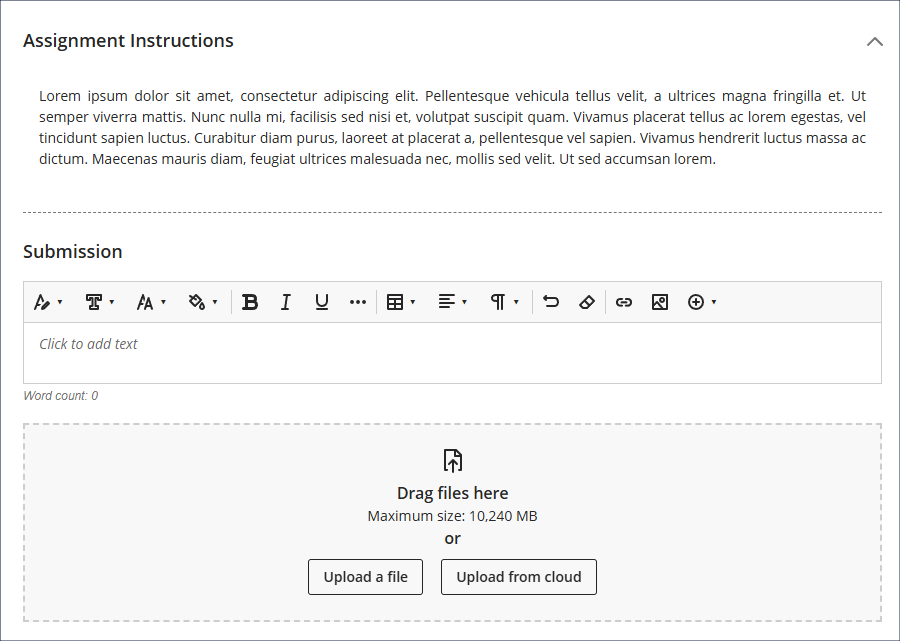
The student view of the updated assignment submission boxes is show below, with the ‘Text entry’ box immediately below the assignment instructions, and the ‘File upload’ box at the bottom. While the ‘Upload from cloud’ button will be visible to students, it is not functional, and students need to use the ‘Upload a file’ button to attach files to their submissions. As is currently the case, files must be less than 1GB in size, and media files must be submitted using Kaltura. See our FAQ ‘Why can’t I upload my file to NILE?’ for more information.
More information about setting up and using Blackboard assignments is available from: Learning Technology Team – Ultra Workflow 2: Blackboard Assignment
Add conversation constraints to AI conversations
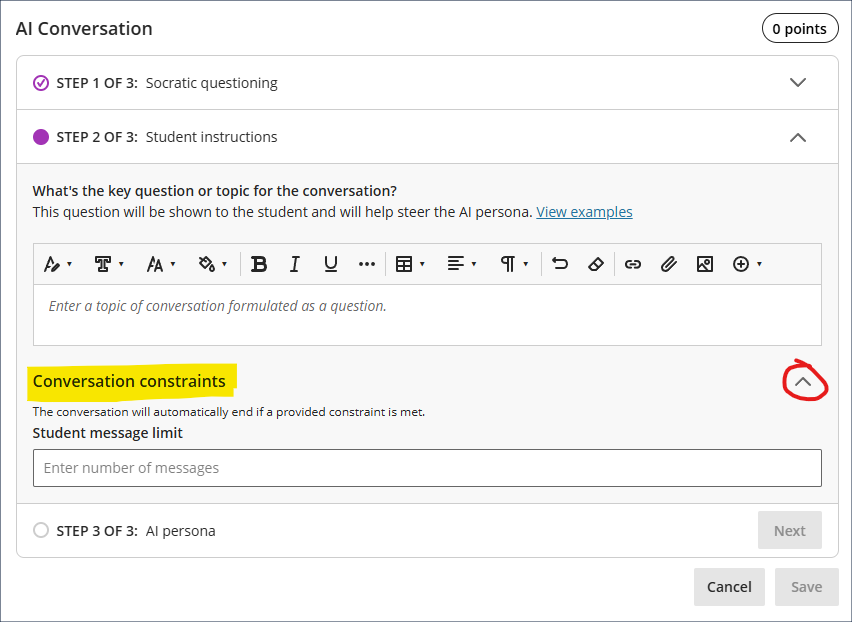
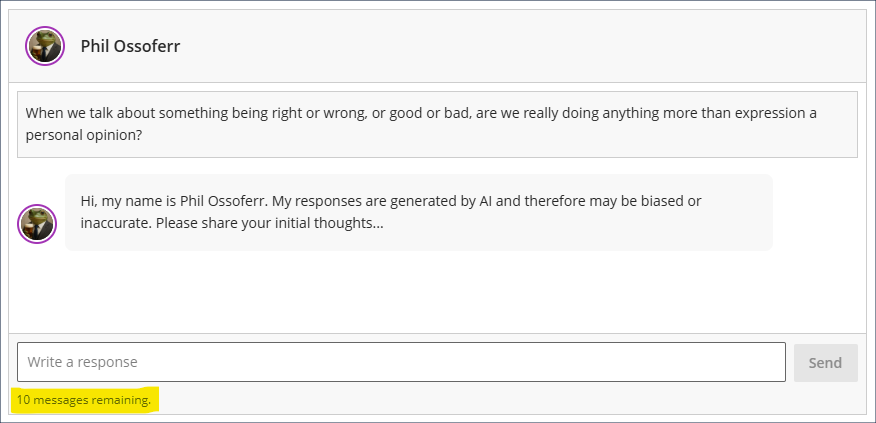
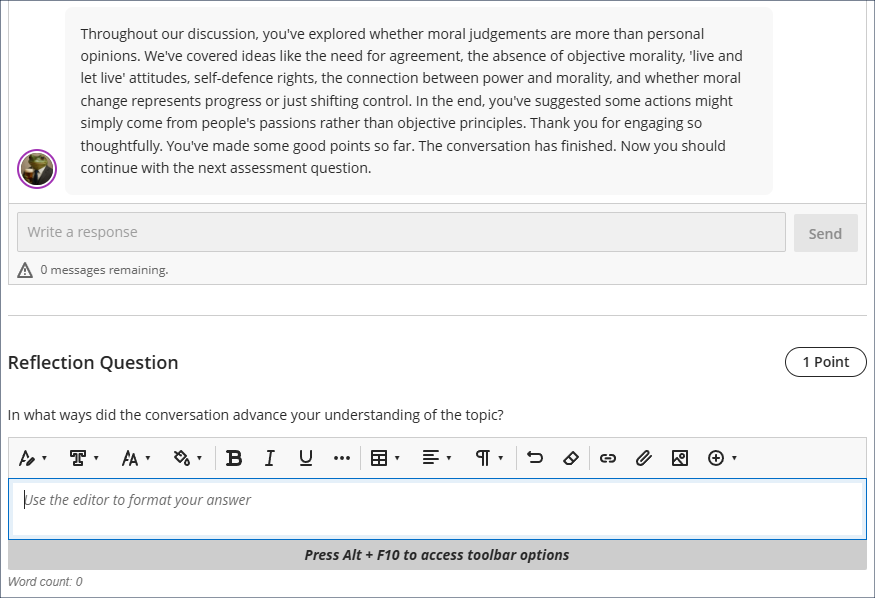
April’s upgrade will allow staff to add limits to AI conversations. In response to feedback about the open-endedness of AI conversations, staff can now optionally specify how many responses a student can make. Students will not be able to go beyond this message limit, but can still submit before the message limit is reached. If message limits are specified students will see this, and will be kept updated as to the number of messages remaining. Upon submission of their last message, the AI persona will summarise the discussion, thank the student for their responses, and will prompt them to complete the reflection question.
More information about using AI conversations is available from: Blackboard Help – AI Conversation
Upgrades to Collaborate (available from 16th April)
From the 16th of April the following new features will be available to all Collaborate users:
Additionally, moderators of Collaborate sessions will be able to make use of the following new features:
*Please note that auto-generated subtitles are never 100% accurate therefore will not be suitable for a student with an Academic Inclusion Report (AIR) who requires provision of completely accurate captions and/or transcripts. More information about captioning requirements for Collaborate sessions (and other audio and video content) is available from: Learning Technology Team – Accessibility in NILE, Captioning Collaborate lectures, Kaltura recordings, and other video and audio content
Learning technology / NILE community group
Staff who are interested in finding out more about learning technologies and NILE are invited to join the Learning Technology / NILE Community Group on the University’s Engage platform. The purpose of the community is to share information and good practice concerning the use of learning technologies at UON. When joining the community, if you are prompted to login please use your usual UON staff username and password. By joining the Learning Technology / NILE Community you will receive calendar invitations to our regular live community events:
Join the Learning Technology / NILE Community Group
More information
As ever, please get in touch with your learning technologist if you would like any more information about the new features available in this month’s upgrade: Who is my learning technologist?
