
The new features in this month’s Blackboard’s upgrade will be available from Friday 9th January. This month’s upgrade includes the following new/improved features to Ultra courses:
- NILE course navigation improvements
- Improved options for true/false questions in Ultra tests
- Improved options for multiple option questions in Ultra tests
- Ultra document block layout improvement
NILE course navigation improvements
Following Friday’s upgrade, NILE courses will look slightly different. This change is designed to improve top-level navigation around NILE and to make better use of screen space. As part of the upgrade, all NILE courses will now have a course banner, although this can easily be changed by staff. Please note that this is a required update by Blackboard and not something that individual institutions have any control over.
More information is available at:
- Understanding how a NILE course works (student guide)
- Ultra courses system navigation update – January 2026 (video: 1m 43s)
- How to change your NILE course banner (video: 0m 58s)
- Update on system navigation changes in Blackboard (PDF document)
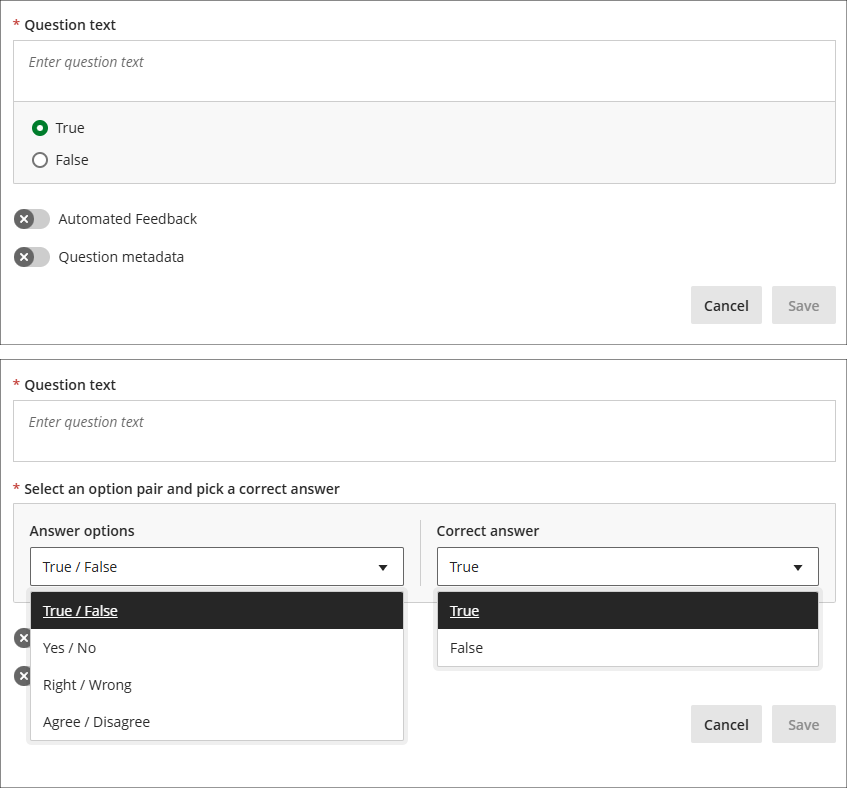
Improved options for true/false questions in Ultra tests
As part of the January upgrade the true/false question type in Ultra tests, which currently only allows users to select the response options ‘true’ or ‘false’, will be expanded to include a wider range dichotomous response types:
- True / False
- Yes / No
- Right / Wrong
- Agree / Disagree
More information about Ultra tests is available from: Learning Technology Team – Ultra Workflow 3: Blackboard Test
Improved options for multiple option questions in Ultra tests
The January upgrade will introduce a new option for staff setting up multiple option questions, allowing staff to define the maximum number of options that students can select (currently, students can select up to as many options as there are). When setting up multiple option questions, staff will need to specify: 1) the options which can be selected; 2) which of these options are correct, and; 3) the maximum number options that can be selected (this must be between one and four). Students will see a display showing how many options can be selected, but not how many options are correct, so for a more straightforward test the number of correct and selectable options would be the same, but for a more challenging test the maximum number of selectable options could exceed the number of correct options. And, depending on the level of challenge required, staff may or may not choose to disclose to students that the number of selectable options is greater than the number of correct options. Combined with the option to use negative marking, the multiple option question is an extremely versatile question type.
The following screenshot shows a complex multiple option question setup, with two correct answers but the option to choose up to three options. Additionally, partial and negative credit is enabled and a negative overall score is allowed, meaning that students can score between 100% and -150% of the question score.
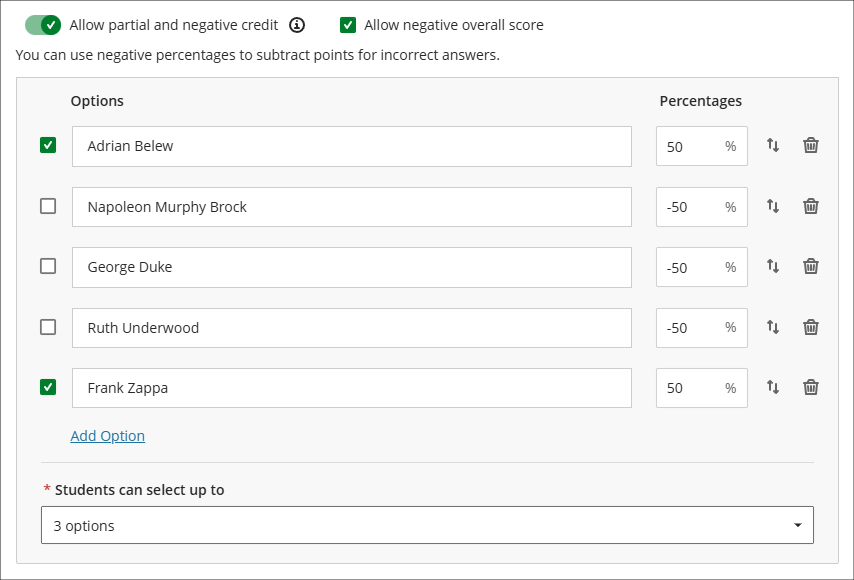
Where a multiple choice rather than a multiple option question is preferred, this can be set by specifying only one correct option and only allowing students to select one option. Where these settings are selected the question will display to students with radio buttons rather than checkboxes.
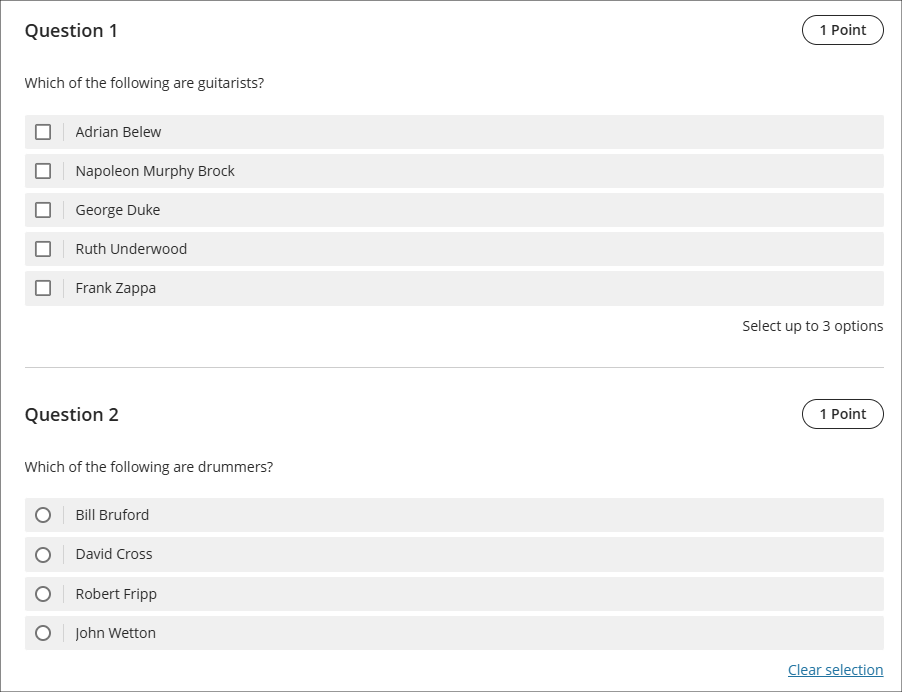
The following screenshot shows how the multiple option/choice questions display to students. Question 1 is the student view of the question already shown in the screenshot above. How many options can be selected is always shown to students, but how many correct answers there are is not displayed to students, so if you wanted to have questions which allowed more options to be selected than there are correct options, you might want to consider letting students know about this in the test instructions. Question 2 shows the display of a multiple option question with one correct option and only one option able to be selected.
More information about Ultra tests is available from: Learning Technology Team – Ultra Workflow 3: Blackboard Test
Ultra document block layout improvement
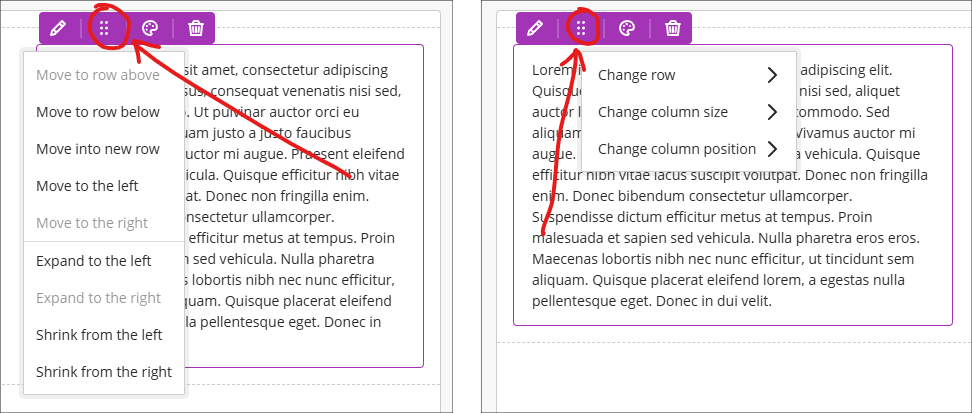
To improve usability and accessibility, the January upgrade will include a restructured menu for the Ultra document block layout. Currently, all options for changing the row, size, or position of a block are in a single dropdown list. Following the upgrade these options will be organised by row, size, and position. The following screenshot shows the pre-upgrade menu (shown on the left) and the post-upgrade menu (shown on the right).
More information about using Ultra documents is available from: Blackboard Help – Documents
Learning technology / NILE community group
Staff who are interested in finding out more about learning technologies and NILE are invited to join the Learning Technology / NILE Community Group on the University’s Engage platform. The purpose of the community is to share information and good practice concerning the use of learning technologies at UON. When joining the community, if you are prompted to login please use your usual UON staff username and password. By joining the Learning Technology / NILE Community you will receive calendar invitations to our regular live community events:
Join the Learning Technology / NILE Community Group
More information
As ever, please get in touch with your learning technologist if you would like any more information about the new features available in this month’s upgrade: Who is my learning technologist?
