
The new features in this month’s Blackboard’s upgrade will be available from Friday 5th December. This month’s upgrade includes the following new/improved features to Ultra courses:
- Change to staff view of learning modules
- Set release conditions for opened or started non-assessed content items
- Specify participation requirements for discussions
Also of interest may be the following:
- New NILE training course: Enhancing and measuring student engagement through NILE tools
- Coming soon: New Blackboard Help site
- Coming soon: Improved look for Ultra courses
- Coming soon: Automatically send messages to students based on course-level rules
Change to staff view of learning modules
Currently, when staff select an item in a learning module the item opens in full page view. This means that staff cannot easily see and navigate between the items they have added to their learning modules, as they have to open and close each item individually. December’s upgrade will add in a collapsible contents menu to the staff view of learning modules, allowing much easier navigation between items, either by selection from the contents menu, or by using the previous and next buttons. This upgrade effectively replicates for staff the student view of learning modules, meaning that with the exception of the ‘Edit content’ button, staff now see learning modules as their students see them.
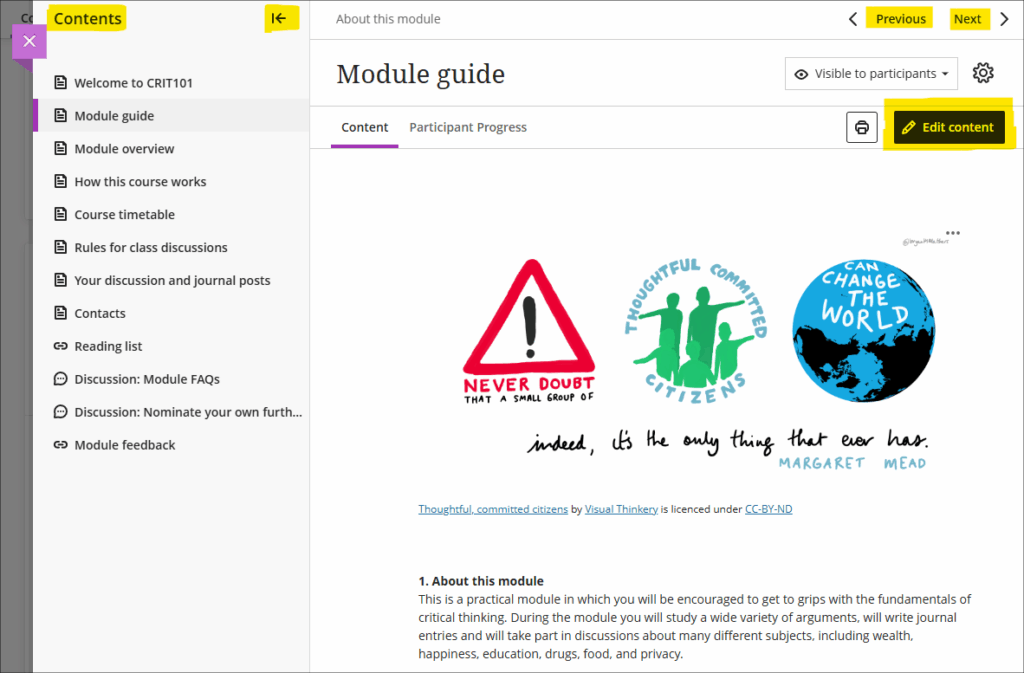
For more information about learning module see: Blackboard Help – Learning Modules
Set release conditions for opened or started non-assessed content items
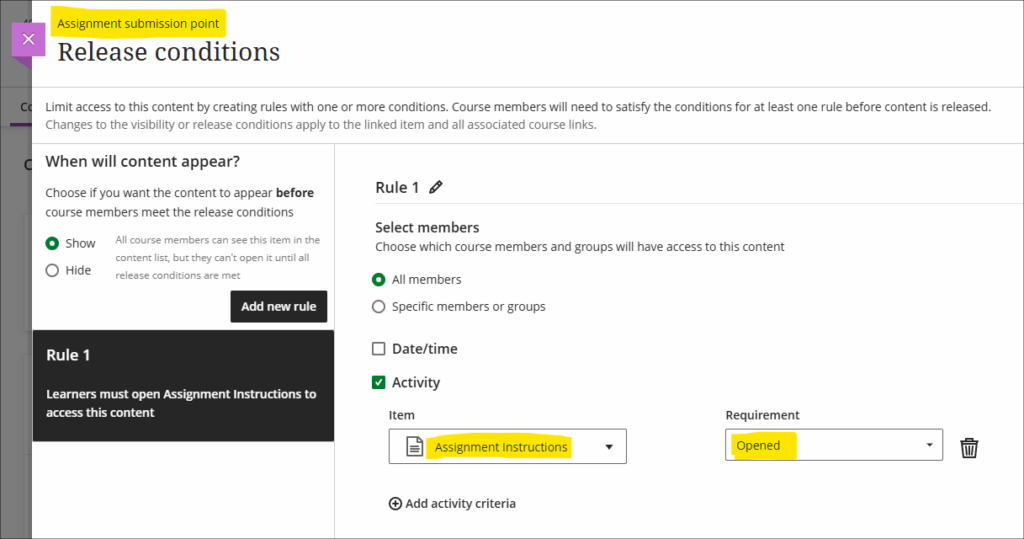
A seeming small, but nevertheless rather interesting new option for using release conditions will be available in the December upgrade. To date, release conditions have only been available to set with time/date restrictions (i.e., available before, after, or between such-and-such a time) or against items which have an entry in the gradebook (i.e., available to students who have scored above, below, or between such-and-such marks). The December upgrade makes use of the fact that Blackboard courses keep track of which students have viewed which content items, and this can now be used in conjunction with release conditions to make content selectively available only to students who have viewed certain content items. For example, in the following screenshot I have set my assignment submission point to be available only to those students who have opened the assignment instructions:
Multiple release conditions can also be used. In the next example, my assignment submission point is now only available to students who have: 1) opened the assignment instructions; 2) submitted a pre-assignment checklist, and; 3) submitted and received a mark for their draft assignment:
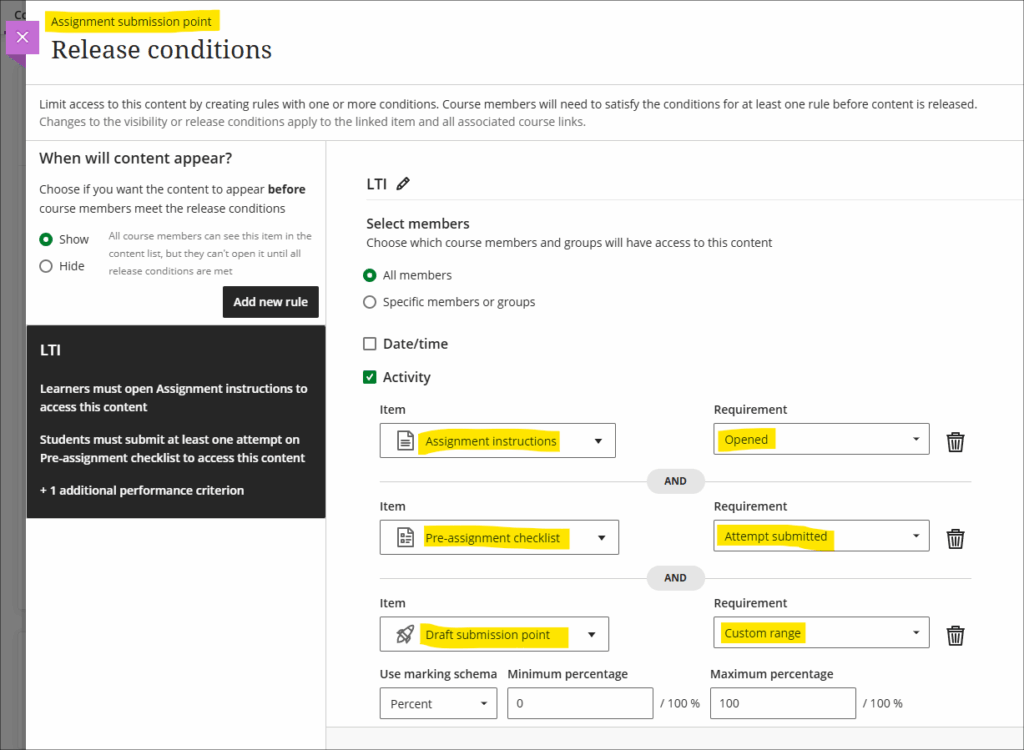
In both of the above examples, under ‘When will content appear?’ (towards the top left of the screenshot), the option has been left in the default state of ‘Show’. This means that students will still see the assignment submission point, but it will remain locked until the release conditions are met. The student view of the above would thus be as follows:
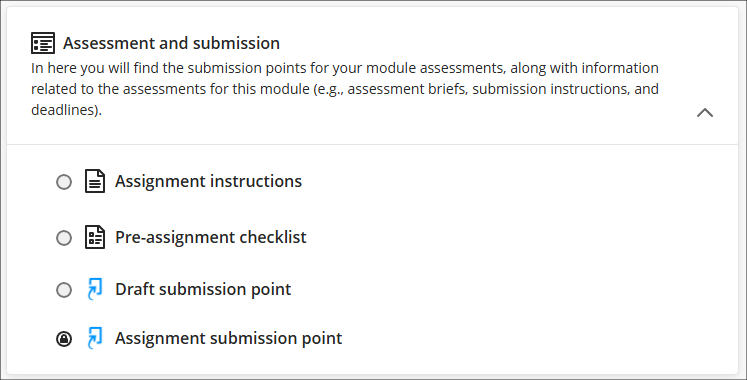
You could, of course, use a cascading set of release conditions to make sure that in order to complete the second item, students have to complete the first, and so on and so forth, if you would prefer that the tasks were completed in a particular order.
More information about using release conditions is available from: Blackboard Help – Content Release Conditions
Specify participation requirements for discussions
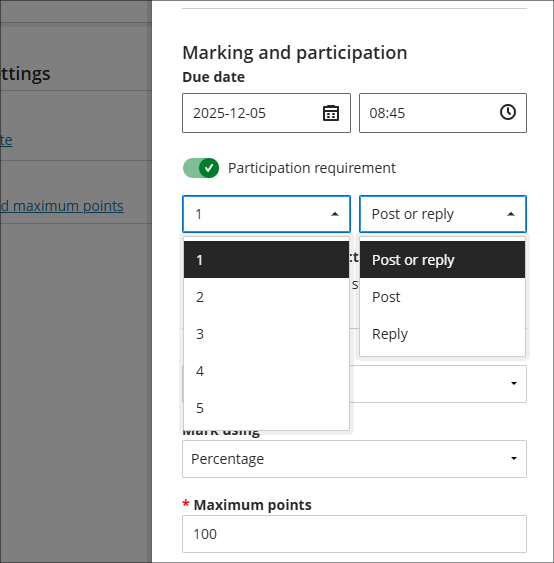
Following December’s upgrade staff will be able to specify participation requirements for marked discussions. The options available allow staff to choose the number of responses, from one to five, and whether these should be posts, replies, or a mixture of both.
If specified, the participation requirements will automatically be shown to students, and a visual indicator provided which shows their progress will be displayed.
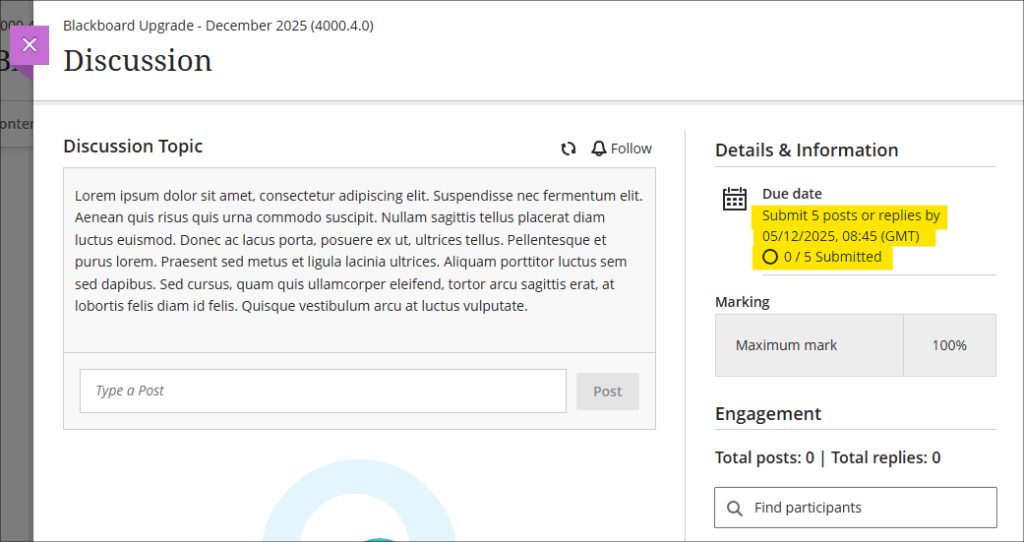
Setting participation requirements does not affect any gradebook settings. For example, if a student has not met the minimum participation requirements this will not affect whether or not the discussion can be marked.
More information about setting up and using discussions is available from: Blackboard Help – Discussions
New NILE training workshop: Enhancing and measuring student engagement through NILE tools
A new NILE workshop, focusing on the student engagement analytics available in NILE courses, is now available. The workshop will enable staff to:
- gain confidence when applying NILE tools to monitor and improve the student learning experience;
- explore the tools in NILE (Blackboard Ultra) that provide insights into student engagement;
- interpret learner activity from a demonstration site with dummy student data;
- evaluate patterns of participation to identify strengths, areas for improvement and develop strategies for enhancing engagement;
- reflect on how students interact with the virtual learning environment and consider how this evidence can inform their teaching practice and module design.
View dates and book onto Enhancing and measuring student engagement through NILE tools
Coming soon: Updated Blackboard Help site
Blackboard are planning a major overhaul of their help site, help.blackboard.com, which will go live on 10 December 2025. Redirects will be in place, but it is possible that some links may not successfully redirect, so if you have any links beginning help.blackboard.com please check them on or shortly after 10 December. If you would like to see what the new site will look like, you can view the preview version of the new Blackboard Help site.
Coming soon: Improved look for Ultra courses
Friday 9th January 2026 will see an improved look for Ultra courses, as shown in the screenshot below. The upgrade is designed to improve top-level navigation around NILE and to make better use of screen space. As part of the upgrade, all NILE courses will now have a course banner, although this can easily be changed by staff. Please note that this is a required update by Blackboard and not something that individual institutions have any control over.
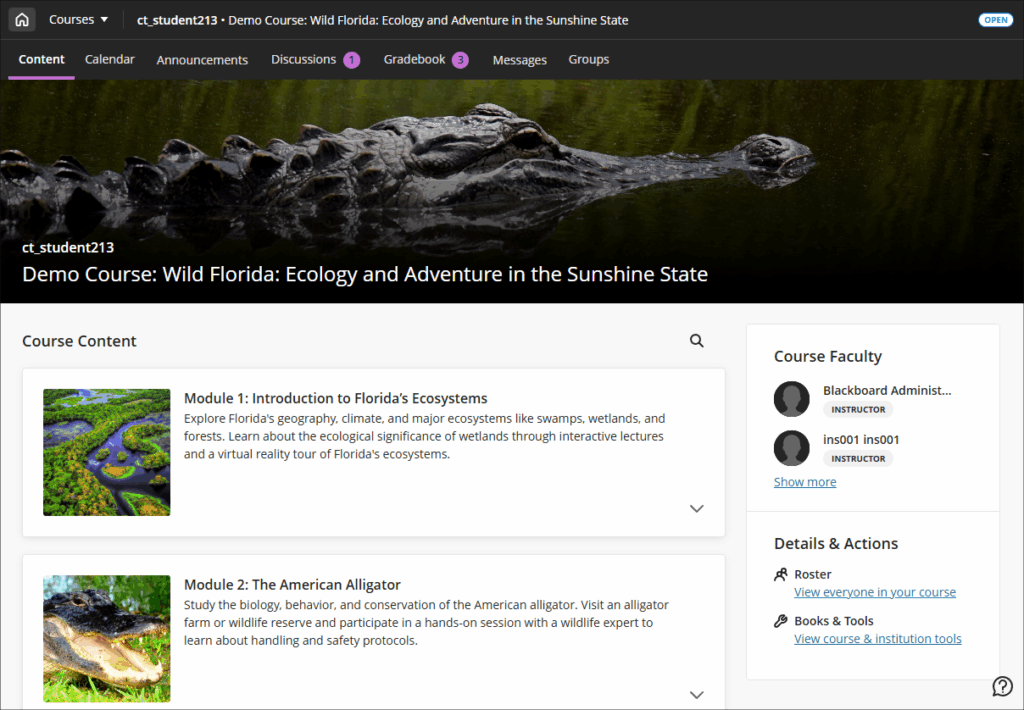
Full details of the changes are available in the following document:
More information is available from:
- Ultra courses system navigation update – January 2026 (video: 1m 43s)
- How to change your NILE course banner (video: 0m 58s)
Coming soon: Automatically send messages to students based on course-level rules
Semester two will see the introduction of a new tool in Ultra courses; Anthology’s virtual assistant. With this upgrade staff will be able to automate sending messages to students based on assessment scores.
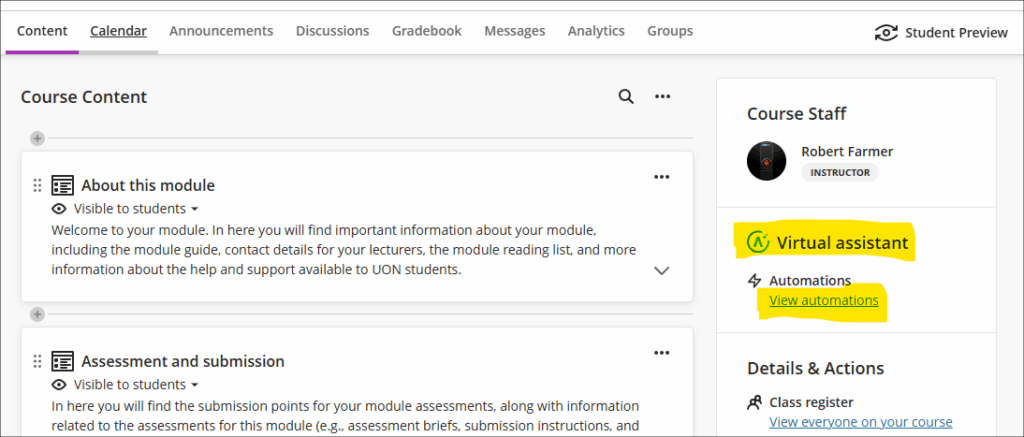
In this initial release staff can select to send messages to students based on the following criteria:
- Students who have received a mark above above a given percentage in an assessment;
- Students who have received a mark below a given percentage in an assessment;
- Students who have received any mark at all for an assessments (i.e., have a mark of 0% or more).
Staff can set up multiple automations, so can, for example, send automated supportive messages to students who have received a fail for an assessment, and also send congratulatory messages to students who have received a high score for an assessment. However, please note that in this initial release there is currently no option to select ‘between’ marks, only marks above or below certain values can be chosen.
More information about automations is available from: Blackboard Help – Automations
Learning technology / NILE community group
Staff who are interested in finding out more about learning technologies and NILE are invited to join the Learning Technology / NILE Community Group on the University’s Engage platform. The purpose of the community is to share information and good practice concerning the use of learning technologies at UON. When joining the community, if you are prompted to login please use your usual UON staff username and password. By joining the Learning Technology / NILE Community you will receive calendar invitations to our regular live community events:
Join the Learning Technology / NILE Community Group
More information
As ever, please get in touch with your learning technologist if you would like any more information about the new features available in this month’s upgrade: Who is my learning technologist?
