
In the past, updates to PebblePad have been easily communicated via a quick announcement, however, there have been many changes over the past six months and some of these might be relevant to the workbooks that you assess or manage. Therefore, we have dedicated an entire blog post to some of the more significant changes.
- Progress Tracking
- Evidence Blocks
- Assessor only tables
- Collection pages, activity logs and verifications
Progress tracking
In the past, progress tracking within PebblePad has been reliant on a student marking a page as complete. However, you can now track both students and assessors progress through a workbook and be in control of exactly what is tracked by enabling ‘block-level progress’ in the properties sidebar.
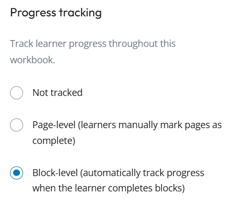
You can decide which blocks on a page/template you would like to track regardless of whether the blocks are for students or assessors. When in editing mode, the block will show a ‘tracked’ icon. When viewed by a student or assessor, a tracked block will show an ‘incomplete’ icon until the criteria for completion has been met.
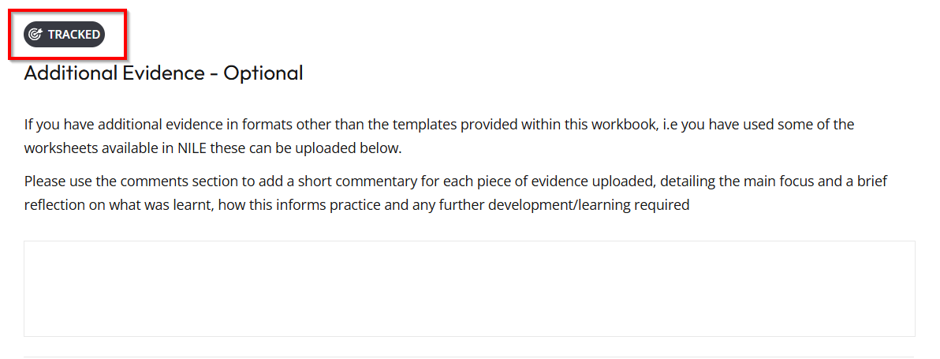
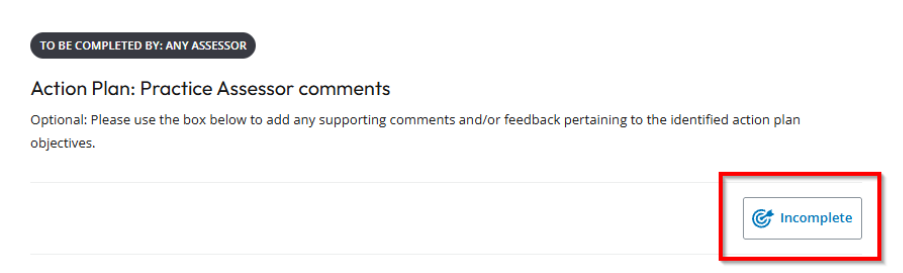
All block types can have tracking applied, which means that you can more easily keep track of the parts of a workbook where completion is mandatory. There are some further settings for each block depending on what it is, and these are highlighted below:
- Capability blocks – these are blocks that enable further evidence to be added. When tracking is added to these blocks, further terms can be set for the block to be marked as complete (see section ‘evidence blocks’ below).
- Multi-line text boxes – where students have been given a text box to complete, tracking can be set to be marked as complete as soon as any text is entered or once the minimum word count has been reached. *Please note: if the minimum wordcount is set to 0, this will immediately show as complete.
There are also some blocks where tracking (at present) is potentially limited:
- Tables – if using repeating rows, the table will be marked as complete once the first row has been completed. If there are a set number of rows the table will show as complete once ALL cells have been completed.
- Check list – this block will be marked complete if 1 item is ticked. At present there is no option to indicate how many checkboxes should be ticked to verify completion.
The PebblePad video below demonstrates progress tracking in action and also gives some insight into how this data can be viewed on your ATLAS dashboard.
If you would like a sneaky peek at progress tracking in action, please take a look at the workbook example found here: Progress tracking example
Evidence blocks
When the option to ‘attach evidence’ is added to a block, progress tracking can be enabled along with a selection of criteria that needs to be met before the evidence is marked as complete. Criteria include:
- The number of pieces of evidence needed
- The evidence type used
- Required tags
- Creation date
- Only completed evidence (i.e. a fully complete template)
- A set signature requirement
- A verification requirement
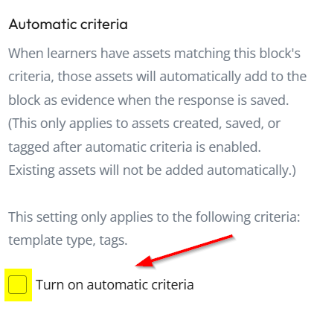
Additionally, if tags are used as a criterion for evidence collection, these can now be automatically added as evidence if the ‘Automatic Criteria’ option is selected. This means that students would not need to upload evidence that is correctly tagged, it would automatically be added as evidence.
To see how evidence blocks might be used, take a look at our workbook example found here: Evidence Blocks example
Assessor only tables
A long-awaited change for tables is that they can now be assigned as assessor only. In the past, rubrics were the only tabular format that could be role restricted. To add the role restriction, select the table, open the properties panel and select the appropriate role restriction.
Collection pages, activity logs and verifications
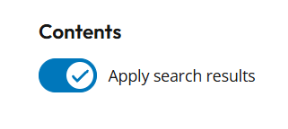
Collection pages and activity logs have always caused a few headaches but there have been a number of improvements to these. You may have noticed that ‘search results’ are now turned on by default; we no longer need to rely on students locating the toggle button to see their collection of worked hours or patient feedback forms.
If progress tracking is enabled on the templates for a collection, then the progress of completion will now be shown on the collection page itself. Once fully compete, this will show as such with a blue 100% icon under the progress heading.

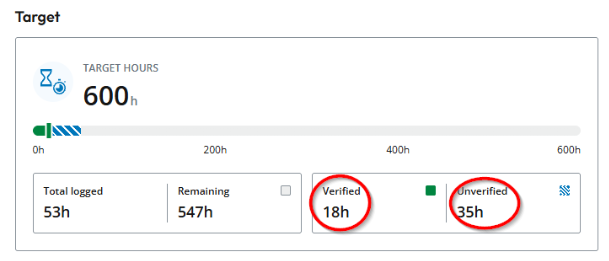
For activity logs that contain information that needs to be verified (such as worked hours), this is now more easily done by using assessor defined tables on the templates associated with the activity log. Students can insert their hours, and assessors can verify these by entering the verified hours into their table. If there is a discrepancy, only the verified hours will display on the collection page. Assessors can see if hours still need verification from the ‘unverified’ section on the target card.
Other changes to activity logs and collections are listed below:
- More information on the collection pages and activity logs with a full-width table layout with sortable information including item, last updated date, progress, hours or points, verification status and verifier. New target cards provide an at-a-glance view of logged, verified, unverified and remaining hours, or logged and remaining points.
- Students and staff can search entries by title and use verification status to find items still awaiting review.
- A blue dot highlights work updated since the viewer’s last visit, helping assessors focus on what has changed.
- Tutor-defined Activity Logs and Collections now use one streamlined description field when creating new resources. Existing hint content remains available for resources that already use it.
To see collection pages and activity logs in action, please take a look at our workbook example found here: Collection pages and activity log example
Interested in these changes?
For more information on these updates or for a discussion/demonstration on how they might be used within the workbooks you manage, please get in touch with your Learning Technologist.