
Currently viewing the tag: "Browsers"
If you are using Internet Explorer and encounter problems uploading your document or viewing your submissions, we recommend you ensure the following sites are added to the “Trusted Sites” setting:
https://*.submit.ac.uk
cdn.submit.ac.uk
cdn.edgecast.net
In Internet Explorer, to add sites to the “Trusted Sites” zone:
- From the Tools menu, select Internet Options.
- Click the Security tab, and then click the Trusted sites icon.

- Click Sites. In the text box beneath “Add this website to the zone:”, type the URL for the site you want to add, and then either press Enter or click Add.
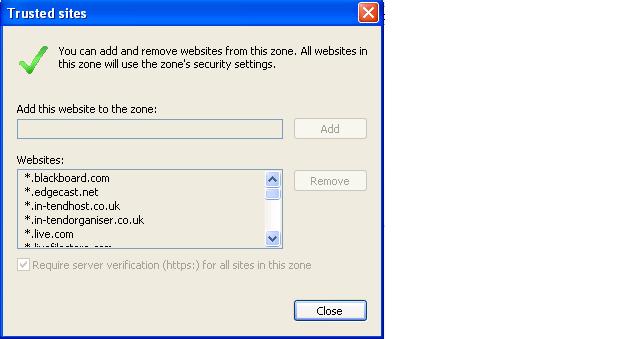
Note: To add sites that begin with http rather than https, uncheck Require server verification (https:) for all sites in this zone; otherwise, you’ll only be able to add https sites.
- Repeat the previous step until you have added all the sites you wish to add.
- Click Close and then OK to close all dialog boxes.
Finally, Turnitin currently officially supports the following web browsers:
- Firefox 3+, Internet Explorer 7.x & 8.x, Chrome 4+, or Safari 4+ for Windows machines
- Firefox 3+, Chrome 4+, or Safari 4+ for Mac OS machines
If you are not using a supported web browser it is recommended that you either update your existing web browser to the supported version or download the appropriate web browser for your computer.
Contact the Learning Technology team if you need more help.
